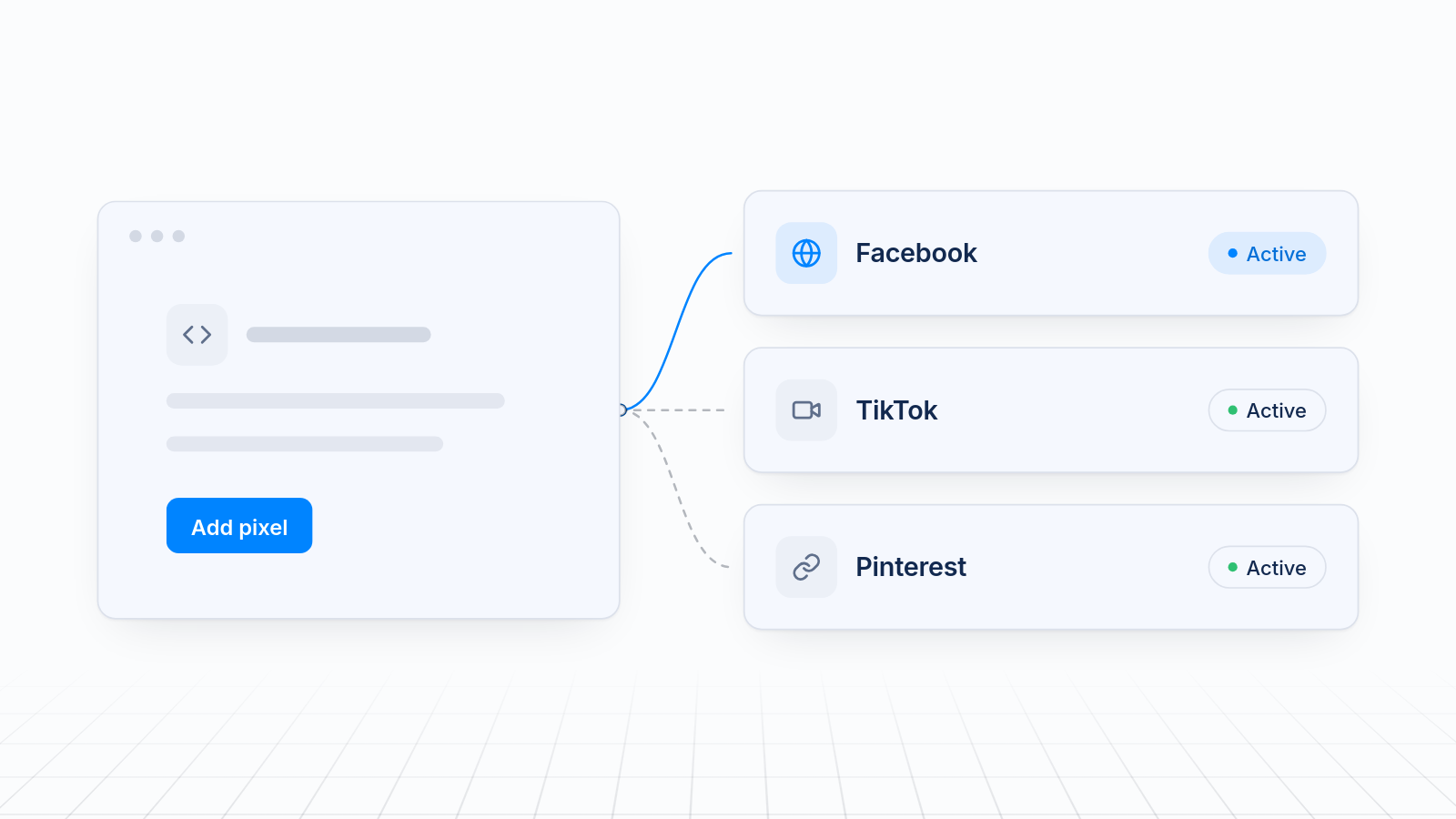
The easiest way to add multiple ad pixels Shopify store without editing theme code is a pixel app. The app installs each pixel through Shopify's Customer events, so nothing gets pasted into your theme and no developer is needed. This post covers how that works, what to look for in an app, when Shopify's own channel apps are enough, and how to set up MultiPixels step by step.
Key takeaways
- Pixel apps install through Shopify's Customer events, so your theme stays untouched.
- App pixels run in a protected environment and cover checkout, where theme code does not run.
- Look for platform coverage, server-side events, speed impact, backup pixel support and price.
- Each platform's own Shopify app is enough if you need one pixel per platform and nothing more.
- MultiPixels handles Facebook, Instagram, TikTok, Snapchat, X and Pinterest from one dashboard, with plans from $9.99 a month after a 10-day free trial.
How an app-based pixel install works on Shopify
An app adds each pixel through Shopify's Customer events, not your theme files. You'll find it in your Shopify admin under Settings > Customer events. It lists every pixel that listens to what shoppers do on your store.
Shopify has two kinds of pixels there. App pixels come from an app or sales channel. Custom pixels are code you paste in yourself. App pixels use Shopify's supported Web Pixels API and run in a strict, isolated environment. Shopify describes this as the most secure, reliable and fast way to run pixels.
Because the pixel runs inside Shopify's own system, it sees the same events Shopify sends: page views, product views, add to cart, checkout and purchase. It also covers checkout, which theme code cannot reach.
Why an app is better than pasting code into your theme
An app install breaks less, slows your store less and misses fewer sales than pasted theme code. Each of those problems costs you money.
- Fewer breakages. One wrong character in
theme.liquidcan break your store pages. A theme update can also wipe out code you pasted. App pixels do not depend on your theme. - Less slowdown. Several scripts loading on every page add weight. App pixels load in an isolated environment, away from your main page.
- Fewer missed conversions. Theme code does not run on checkout. A pixel that only lives in your theme reports fewer purchases than Shopify recorded. Your ad platform then optimizes on thin data, and you pay for clicks it cannot learn from.
- Fewer double counts. If a pixel is pasted in the theme and also installed by an app, every event counts twice. That inflates results and sends your budget the wrong way.
Shopify's help pages say the same about older checkout scripts. The Additional scripts box has been retired on upgraded checkouts, so code placed there no longer runs.
What to look for in a pixel app
Look for platform coverage, server-side events, speed impact, backup pixel support and a fair price. Checking these five things before you install saves a lot of cleanup later.
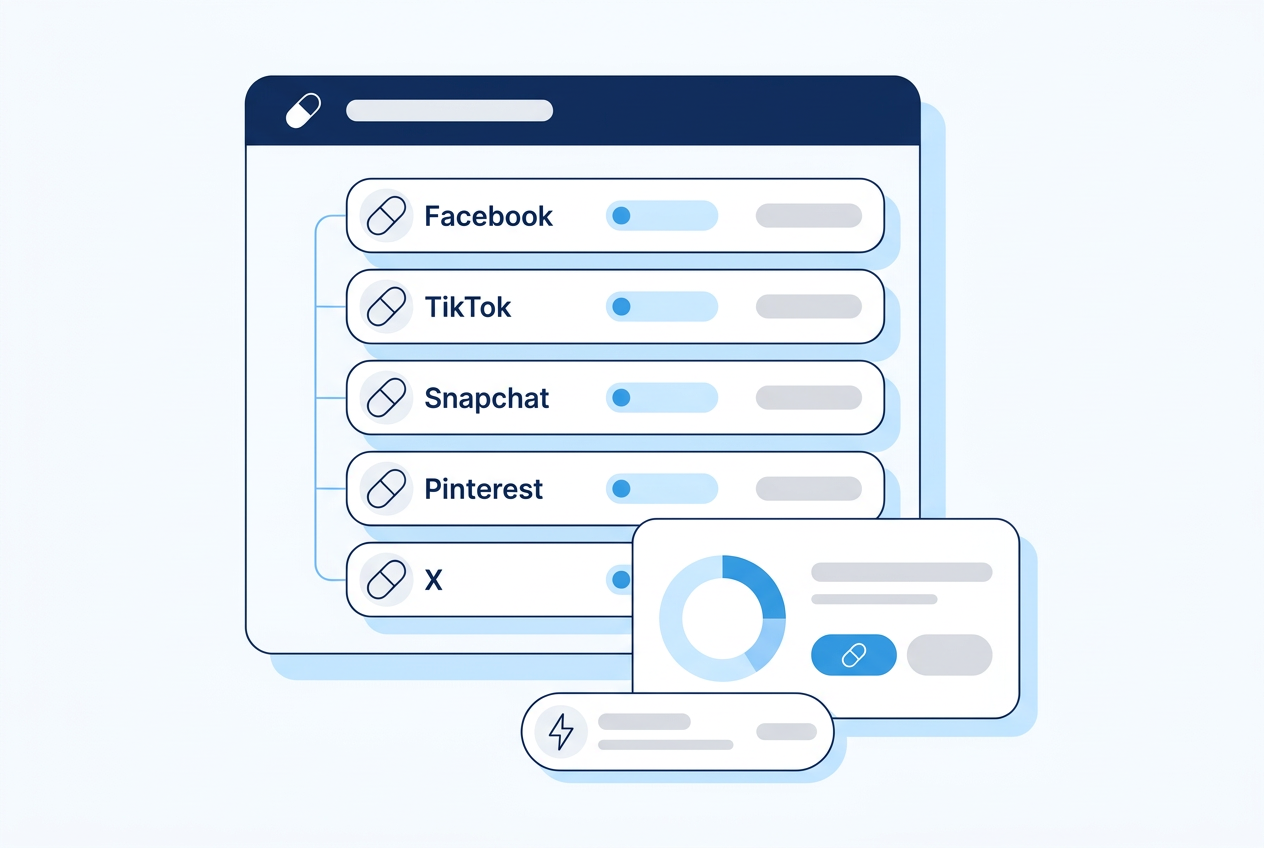
- Platforms supported. Make sure it covers every ad platform you run today and any you might add. Facebook, Instagram, TikTok, Snapchat, X and Pinterest is a full set for paid social.
- Server-side events. Ad blockers and privacy features can block browser pixels. Server-side events are sent from a server instead, so more of your purchases reach the ad platform. Ask whether the app offers them for each platform you use.
- Speed impact. Look for an app that uses Shopify's Web Pixels approach and a light script. A slow store loses sales before the ad even matters.
- Backup pixel support. If an ad account gets restricted, a backup pixel keeps your data collecting. Check that the app lets you add more than one pixel per platform.
- Price. Compare the monthly cost against the ad spend it protects. Check what each plan includes and whether there is a free trial.
The alternatives, and when each one is enough
Shopify's channel apps are enough for one pixel per platform, and a pixel app fits when you need more. Manual custom pixels also work if you are comfortable with code.
| Option | What it does | When it is enough | Where it falls short | |---|---|---|---| | Facebook & Instagram app (Meta) | Connects one Meta pixel and can send server-side events | One Meta pixel, no backup pixel | Generally one Meta pixel per store | | TikTok app | Connects your TikTok pixel through Shopify | One TikTok pixel and a TikTok-only setup | Covers TikTok only | | Google & YouTube app | Connects Google tracking through Shopify | Google Ads and YouTube are your main channels | Not a social pixel manager | | Other platform apps (Pinterest, Snapchat) | Each connects its own platform | One platform at a time is fine | A separate app and setup per platform | | Manual custom pixels | You paste each platform's code into Customer events | You are comfortable with JavaScript and have a tool with no app | You write, test and maintain every one | | MultiPixels | Installs and manages Facebook, Instagram, TikTok, Snapchat, X and Pinterest pixels in one dashboard, with a backup pixel option | Several platforms or several pixels, no code or tech team required | It is a paid app after the 10-day free trial |
If you run ads on one platform with one pixel, the free channel app is a sensible choice. Start there and add more only when you need it.
Manual custom pixels suit teams with a developer and an unusual tool. They take the most upkeep, because you write and test every change.
A pixel app makes sense when you run two or more platforms, need a backup pixel, or want one place to see what is installed. You can see the platforms MultiPixels connects on the integrations page.
How to set up MultiPixels step by step
Setup takes a few minutes and needs no code. Follow these steps in order.
1. Check for existing pixel code
Before you install, look for pixels already on your store. Go to Settings > Customer events and note what is listed. Then check your theme for old pixel code. Remove anything you plan to run through MultiPixels. Two installs of the same pixel double your counts.
2. Install the app
Open MultiPixels in the Shopify App Store and click install. Approve the permissions. Your 10-day free trial starts, and plans are $9.99, $19.99 or $39.99 a month after that.
3. Add your first pixel
In the dashboard, choose a platform, such as Facebook. Paste your pixel ID from that platform's events tool and save. The app registers the pixel through Shopify's Customer events for you.
4. Add the rest of your platforms
Repeat for TikTok, Snapchat, Pinterest, X and Instagram as needed. Each platform gets its own row, so you can see what is on at a glance.
5. Add a backup pixel if you want one
Add a second pixel for a platform to keep a backup running. If your main ad account runs into trouble, the backup keeps collecting events.
6. Confirm conversions show up
Open your store and place a test order. Then check each platform:
- Meta Events Manager and its Test Events tab
- TikTok Events Manager and its test tool
- The matching events view in Snapchat, Pinterest and X
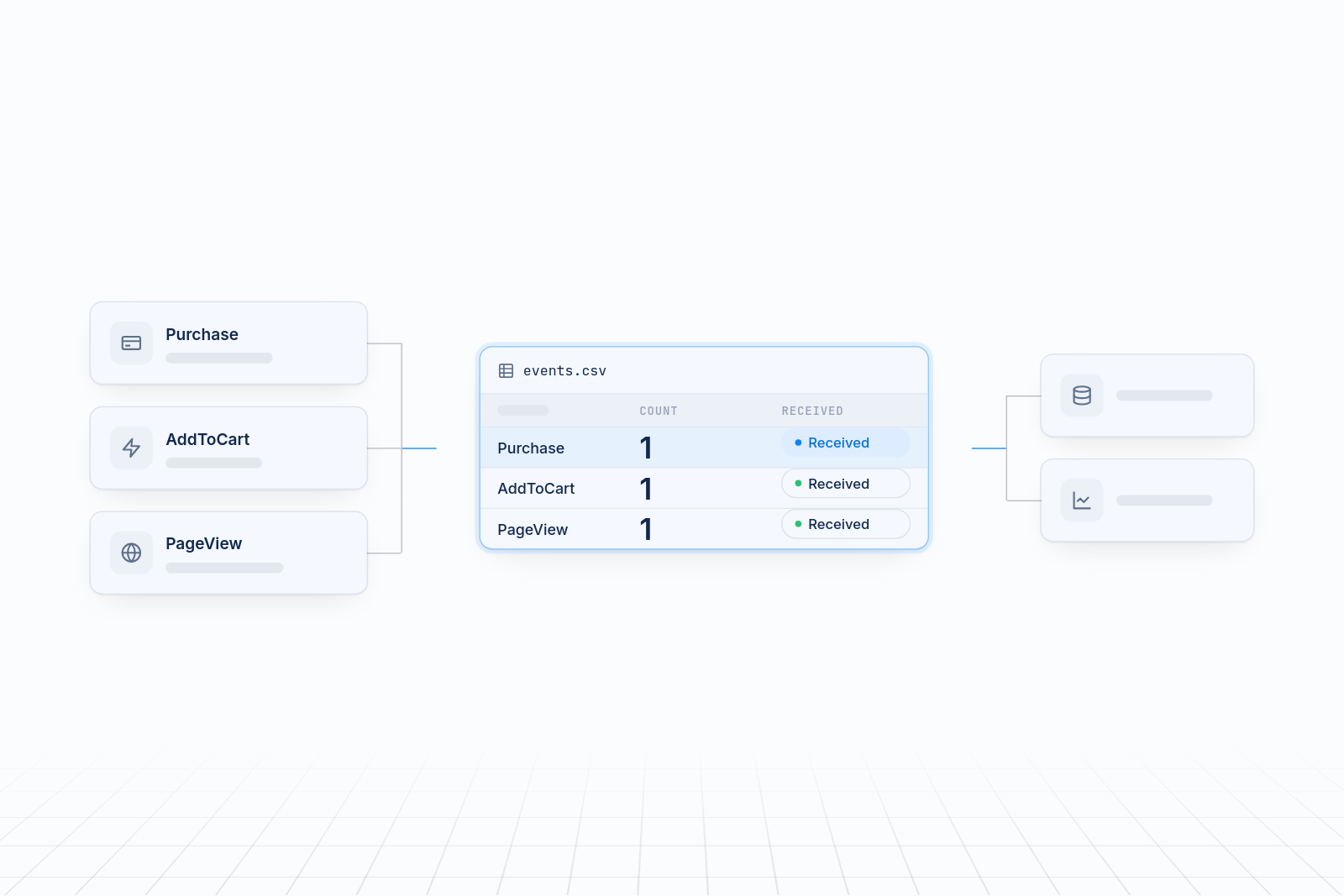
Look for page views, add to cart, checkout and purchase. Each should fire once, and the purchase should carry the right value. If an event arrives twice, find the second install and remove it.
When the numbers still do not match Shopify
Some gap between pixel data and Shopify is normal. Shopify records every order on its servers, while pixels run in the browser and can be blocked. Ad platforms also credit sales using their own attribution rules.
A large or sudden gap points to a problem. Check for duplicate installs first, then old theme code, then whether a pixel is connected at all. Server-side events help close the gap because they do not depend on the browser. Check that your app and each platform offer them. For a deeper walkthrough, see how to fix a pixel and Shopify analytics data mismatch.
FAQs
How to install TikTok pixel on Shopify?
You have two options. Install TikTok's own app from the Shopify App Store and connect your TikTok account, or use a pixel app like MultiPixels. In MultiPixels, add TikTok in the dashboard, paste your TikTok pixel ID and save. Then place a test order and confirm the events in TikTok's events tool.
Can I use a Facebook pixel with Shopify?
Yes. Shopify's Facebook & Instagram app connects a Meta pixel to your store without code. If you need more than one Meta pixel, such as a backup, a pixel app like MultiPixels lets you add them from one dashboard. Install each pixel in only one place so events are not counted twice.
Do I need to remove old pixel code before adding a new app?
Yes. Search your theme and your checkout settings for old pixel code first. If the same pixel is installed twice, every event counts twice and your reports will run higher than Shopify. Remove the old code, then add the pixel through the app.
How many pixels can I run on one Shopify store?
You can run pixels for each platform you advertise on, and several for a single platform if you need them. Every extra pixel is more to maintain, so add the ones you use and keep a list of what is installed and why.
Run every pixel from one place
Adding multiple ad pixels to Shopify does not take code, a developer or theme edits. Install the MultiPixels app from Shopify, add your pixels one by one, and start your 10-day free trial to see your conversions arrive across every platform.