To improve ad attribution on Shopify after the iOS tracking changes, send your conversion events from a server as well as from the browser, and give each platform clean customer data and consistent UTM tags. Apple's privacy rules and browser limits mean pixels alone miss sales, so ad platforms undercount what your ads earn. Server-side tracking fills that gap, so learn how set up server side tracking Shopify easily, without a developer.
Key takeaways
- iOS privacy changes and browser limits mean browser-only pixels miss a share of your sales. That leads to wasted ad spend and weaker ad optimization.
- Server-side events, sent through tools like Meta's Conversions API, fill the gaps. Keep your browser pixels running alongside them.
- Better customer data raises event match quality, which helps platforms connect sales to the right ads.
- Consistent UTM tags give you a record of your own that does not depend on any one ad platform.
- You can use a hosted tool, a self-hosted server or an app. Pick the one your team can actually maintain.
Server-side tracking collects and sends data from the server instead of the user's browser. For Shopify merchants, that moves important event data off the storefront and into your own environment. Traditionally, a website uses client-side tracking, which means snippets of JavaScript, such as those from Google Analytics or Meta Pixel, embedded in a webpage.
These scripts collect user activity such as clicks, page views and purchases, and send it to analytics and advertising platforms. But client-side tracking is increasingly limited. Ad blockers, browser privacy settings, Apple's App Tracking Transparency rules on iOS and privacy regulations such as GDPR all reduce how much browser-based data gets collected. When data goes missing, your ad platforms see fewer sales than you really made. They then optimize on a partial picture, and you pay for it in wasted ad spend.
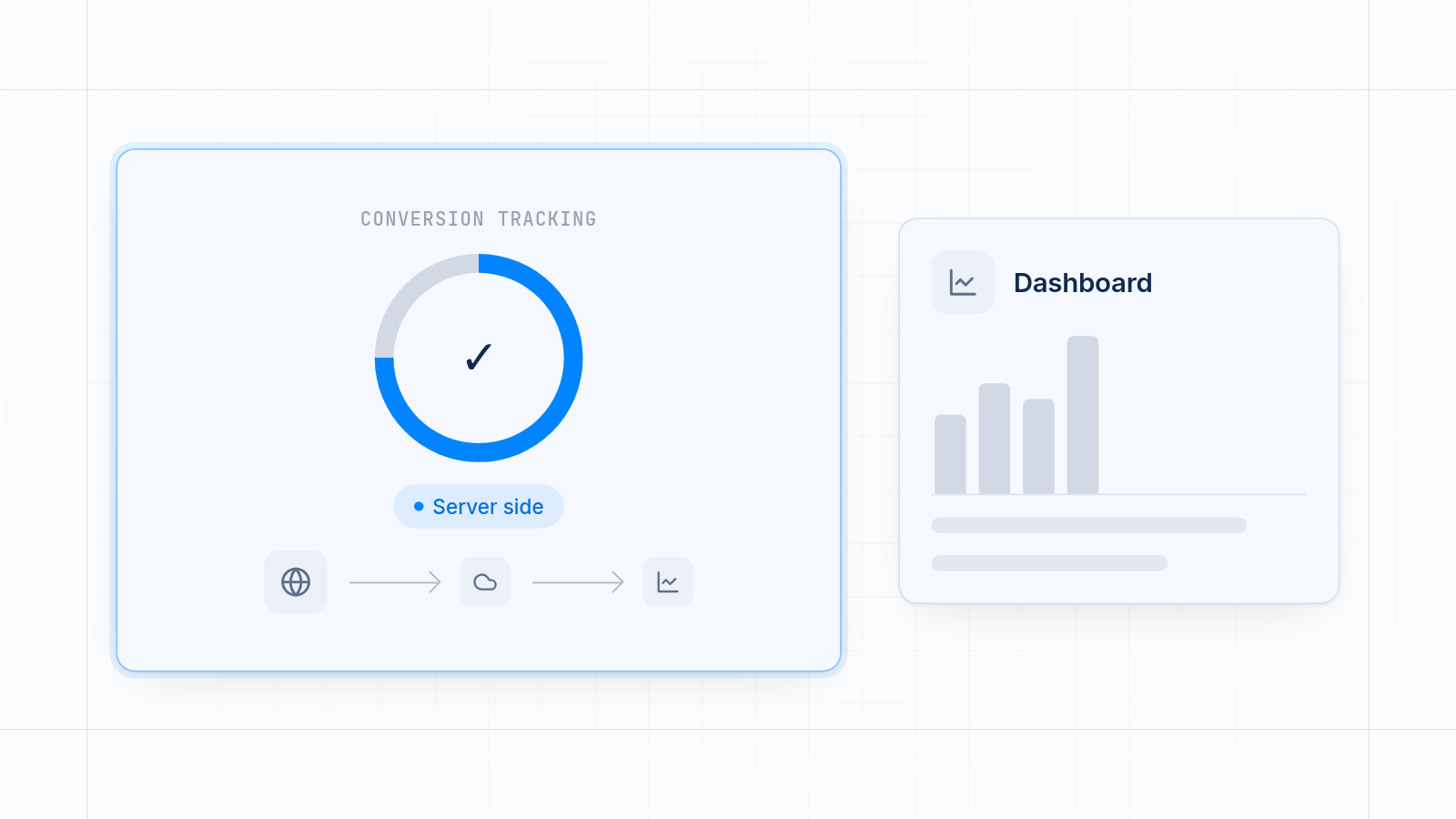
Server-side tracking moves data collection to a secure, first-party server. Instead of relying on a browser, it collects the data in your backend and sends it directly to platforms like Google Analytics 4, Meta's Conversions API or TikTok's Events API.
A full conversion pixel Shopify setup keeps your data accurate across these platforms.
This gets around many browser-imposed limits. It also gives you more secure handling of user data, better control over cookies and more accurate conversion measurement.
Why Server-Side Tracking Matters for Shopify
Server-side tracking matters for Shopify because it restores the conversion data that browsers, ad blockers and privacy rules hide. Merchants increasingly have less visibility into customer behavior and conversions, largely due to modern privacy regulations, Apple's iOS changes and the technical limits of client-side tracking. Shopify server side tracking helps restore that visibility. If you rely on digital advertising, every missing data point can mean lost revenue. Server-side tracking helps in these ways:
Improved Data Accuracy
Client-side scripts are vulnerable to ad blockers and browser limitations, so the data is often incomplete. Server-side tracking bypasses these issues, so event tracking and performance reporting are more reliable.
Faster Page Load Speeds
When heavy tracking scripts come off your storefront and the processing moves to the server, pages can load faster and shoppers get a smoother experience.
Extended Cookie Lifespan
Server environments can manage first-party cookies more flexibly, often extending their lifespan compared to browser-managed cookies. This supports better attribution, especially for repeat or delayed conversions.
Better Conversion Attribution
Server-side events are far less likely to be lost or misattributed. That lets platforms like Facebook Ads or Google Ads connect sales to campaigns more accurately, which matters for ad spend optimization.
Stronger Compliance Capabilities
Handling data server side gives you better control over user consent, data retention and regulatory compliance. This is important for regions governed by CCPA and GDPR.
How iOS Changes Affect Attribution, and What to Do Now
iOS changes cut the data browser pixels can collect, so ad platforms miss sales, and sending server-side events recovers most of it. Apple's App Tracking Transparency means users must opt in before apps track them across other apps and sites. Many say no. Safari also limits how long browser cookies last. So a browser pixel can lose the link between an ad click and a later purchase.
Here is what helps most:
- Send server-side events. Use Meta's Conversions API, TikTok's Events API and similar tools so purchases reach the platforms even when the browser blocks the pixel.
- Keep your browser pixels on. Run both together and use a shared event ID so each sale is counted once.
- Improve event match quality. Pass hashed customer details such as email and phone, where consent allows. Platforms use them to match a sale to the right person and ad.
- Collect first-party data. Your own customer records are not affected by browser tracking limits. Build on them.
- Use UTM tags on every paid link. Keep the naming the same across Meta, TikTok, Google and the rest, so your own reports stay clean. Our post on UTM parameters covers the basics.
- Track across several platforms. Most stores advertise on more than one channel. Each one needs the same clean events, or the numbers will never line up. If your numbers still disagree with Shopify, see how to fix pixel and Shopify Analytics data mismatch.
Shopify Server-Side Tracking Options
The main options are a pixel app, a hosted server container, a self-hosted server or a turnkey tracking platform. Shopify's own pixel tools handle part of this, but many stores add third-party platforms and services for fuller server-side tracking. Here is how the main options compare.
| Option | What it does | What it does not do |
|---|---|---|
| MultiPixels | Installs and manages pixels from Facebook, Instagram, TikTok, Snapchat, X and Pinterest in Shopify with no code or tech team required. Supports a backup pixel, custom and lookalike audiences, and seeing which ads drive sales. Plans are $9.99, $19.99 or $39.99 a month after a 10-day free trial. | It is not a hosted server container, and it does not replace a self-hosted GTM server. |
| Stape.io | Hosts server-side Google Tag Manager containers with no infrastructure to run. | Needs a GTM setup, which takes more technical work. |
| Google Cloud or AWS (self-hosted) | Gives maximum privacy and control over a custom server. | You maintain the server yourself. |
| Elevar, Analyzify, Littledata | Turnkey Shopify server-side tracking with consent, deduplication and multi-channel support. | Cost and setup vary by tool. |
You can see which platforms MultiPixels connects on the integrations page.
Stape.io
Stape is a popular hosted option for server-side Google Tag Manager containers. It's beginner-friendly and cost-effective, and you don't set up any infrastructure. It supports GA4, Meta CAPI, TikTok and more.
Google Cloud (Self-Hosted GTM Server)
Advanced users can set up a custom GTM server container hosted on Google Cloud Platform (GCP), AWS or another cloud provider. You get maximum privacy and control, but you also have to keep the server running.
Shopify + GTM via Apps
Some themes don't allow direct GTM script injection, but apps like Elevar or Analyzify get around that. They let you run both client- and server-side GTM containers without editing theme files.
Third-Party Platforms
Tools like Elevar, Analyzify and Littledata offer turnkey Shopify server-side tracking integrations. They often bundle consent management, deduplication and multi-channel support into one interface.
Step-by-Step Setup (Example with Stape)
Setting up server-side tracking with Stape takes six steps, from creating an account to testing both containers. Here is a typical setup using Stape.io, one of the most popular hosted options.
Step 1: Create a Stape Account
- Visit Stape.io and sign up.
- Choose a pricing plan based on your expected traffic volume and support needs.
Step 2: Create a Server Container in GTM
- Log in to your Google Tag Manager account.
- Click “Create Container,” choose “Server” as the container type.
- Download the container configuration file (used in deployment).
Step 3: Deploy the GTM Container on Stape
- In your Stape dashboard, select “Add New Server Container.”
- Upload your GTM configuration file.
- Select a custom subdomain (e.g., gtm.yourstore.com) and server location.
- Stape will provide a server URL used to connect client- and server-side containers.
Step 4: Link Web and Server Containers
- In your web GTM container, set up a Tag that sends event data to your server container.
- Use a variable to reference your Stape server URL.
- In the server container, add a Client to listen for incoming data and route it to the appropriate tags.
Step 5: Add Tags for Analytics and Ads
-
Within the server container, create tags for:
- GA4 using Measurement Protocol
- Meta using the Conversion API
- TikTok using their Events API
-
Configure triggers for each tag based on events (purchase, page view, add-to-cart).
Step 6: Test Your Setup
- Use GTM's Preview mode to validate both containers.
- Check Stape logs and network requests in DevTools.
- Compare analytics reports before and after implementation.
Server-Side Tracking for GA4, Meta, and TikTok
You send server-side events to GA4 through the Measurement Protocol, to Meta through the Conversions API and to TikTok through the Events API.
Google Analytics 4 (GA4)
GA4 uses the Measurement Protocol, which lets you send server-side events directly to Google's servers. You'll need:
- GA4 Measurement ID
- API Secret (generated in GA4 Admin > Data Streams)
In GTM Server container:
- Create a GA4 tag.
- Input the Measurement ID and API Secret.
- Map incoming data (event names, parameters) to the appropriate format.
Meta (Facebook) Conversion API (CAPI)
Meta's CAPI lets you send user activity directly from your server to Facebook, which improves data quality and event match rates.
You'll need:
- Pixel ID
- Access Token (from Events Manager > Settings)
In GTM Server:
- Use the Meta tag template or set up a custom HTTP request to Meta's endpoint.
- Include parameters like event_name, event_time, user_data, and custom_data.
TikTok Events API
TikTok's Events API works much like Meta CAPI. You'll need:
- Pixel ID
- Access Token
Use GTM Server to:
- Create a custom tag that sends events to TikTok's API.
- Include user identifiers and conversion metadata.
All three platforms support event deduplication using an event_id, which prevents double-counting when you send both client and server events.
Privacy & Consent Compliance
Server-side tracking has to follow the same privacy laws as any other data collection. GDPR in the EU requires explicit consent for tracking and data collection, and users must be able to opt out at any time. The CCPA in California requires disclosure of data usage and an opt-out option for the sale of personal data.
Shopify Policy
Shopify requires merchants to collect user consent before enabling any tracking scripts or technologies.
When you set up server side tracking, align your Shopify pixel setup with regional privacy laws so your server-side events respect consent.
Best Practices
- Use a Consent Management Platform (CMP) like Cookiebot, OneTrust, or Consentmo.
- Store consent decisions in a cookie or dataLayer variable.
- Only trigger server-side tags when consent is present.
- Pass consent data to the server so GTM can conditionally send events.
Common Issues & Troubleshooting Tips
Most server-side tracking problems come from wrong IDs, duplicate events or weak customer data.
1. Events Not Firing
- Confirm that the correct Access Tokens and IDs are used.
- Check DNS setup and SSL certificates on your tracking subdomain.
- Validate GTM container permissions and tag configuration.
2. Duplicate Conversions
- When running both client-side and server-side tracking, use a consistent event_id to deduplicate.
- Platforms like Meta have built-in deduplication logic when both sources send the same ID.
3. Poor Attribution or Matching
- Make sure user_data includes hashed email, IP address, phone number, etc.
- Ensure data is normalized and privacy-compliant.
4. Debugging
- Use GTM Preview Mode in both Web and Server containers.
- Use the Network tab in DevTools to trace outbound requests.
- Review request logs in Stape to troubleshoot payloads and errors.
Hosted vs. Server-Side Tracking: An In-Depth Comparison
Hosted tracking is easier and more predictable to run, while self-hosted tracking gives you more control and takes more work. For server-side tracking in Shopify, one of the biggest decisions is whether to use a hosted solution such as Stape.io or build a self-hosted setup.
Ease of Setup
Hosted solutions like Stape are plug-and-play. Once you sign up, you typically upload your GTM server container, choose a custom domain and connect your Shopify store. You don't deal with server configuration, security patches or SSL certificates. That suits merchants without technical backgrounds or developers on staff.
Self-hosted server-side tracking means setting up your own server environment, often on platforms like Google Cloud Platform (GCP), Amazon Web Services (AWS) or Vercel. You'll need to configure a virtual machine, manage domains, install SSL certificates, handle server updates and make sure it can scale. You get more control, but it takes time and advanced technical skills.
Cost and Budget Considerations
Hosted solutions run on a predictable monthly subscription. For example, Stape's plans range from free (with limited features) to enterprise-level pricing, depending on request volume and support level.
Self-hosted costs vary with server traffic, storage, compute power, bandwidth and external services. You can potentially optimize costs over time, especially at scale, but you'll need to watch usage closely and configure resources to keep expenses from ballooning.
Maintenance and Reliability
Hosted platforms manage uptime, monitoring, updates, backups and scaling for you. If something breaks, their support team is on standby. That suits Shopify merchants who want to focus on running the business rather than infrastructure.
With self-hosted setups, you are the system administrator. You have to keep the server up 24/7, patch vulnerabilities, scale resources during high traffic and fix errors when integrations break. You may get better insight and control, but it can take a lot of time and energy.
Scalability and Performance
Most hosted platforms offer auto-scaling or pre-configured infrastructure that adjusts to your traffic. But because these services cater to a wide range of users, customization is sometimes limited.
In self-hosted environments, you can configure exactly how your server scales, optimize for specific performance benchmarks, or even run your GTM container in regions closest to your users for faster response times.
Privacy and Data Control
Privacy is a growing concern, especially for merchants in regions with strict data protection laws. With hosted platforms, your data passes through third-party infrastructure. Many hosted platforms support custom domains, though, which makes your tracking appear first-party to browsers.
Self-hosting gives you complete ownership of your data, logs and infrastructure. That can be a requirement for businesses in regulated industries or for those who want to minimize third-party data exposure.
Customization and Flexibility
Hosted platforms often come with prebuilt integrations, templates and workflows that speed up setup for common use cases (e.g., GA4, Meta CAPI, TikTok). You may not have full control over advanced routing logic, custom API integrations or unique data handling workflows.
With a self-hosted solution, your GTM server is just one piece of a system you fully control. You can build custom APIs, write your own logging pipelines, use alternative database systems, or integrate with internal dashboards and reporting tools.
Support and Community
Hosted solutions typically include customer support and documentation, and sometimes live chat or onboarding help.
With self-hosted setups, support depends on your own expertise or your ability to navigate forums, GitHub issues and Stack Overflow. Google Tag Manager Server Container has a developer community, but getting timely help can be hard unless you have in-house technical resources.
How to Choose
If you're a Shopify merchant who wants a fast, low-maintenance, reliable way to start with Shopify server side tracking, a hosted platform like Stape is a good fit. They're built for simplicity, come with solid documentation, and let you get up and running in a matter of hours as part of a modern Shopify pixel setup.
If you're a developer, agency or enterprise with unique privacy requirements, deep customization needs, or a wish for full data control, self-hosting may be the better route. Be ready to commit time and technical effort to planning, deploying and maintaining it.
If you mainly want your Facebook, Instagram, TikTok, Snapchat, X and Pinterest pixels installed and managed with no code or tech team required, MultiPixels covers that. Install the MultiPixels app from Shopify and start the 10-day free trial.