To track purchases for cash on delivery orders on Shopify, send the Purchase event to Meta and TikTok only when an order is confirmed or delivered. Tag every COD order so you can tell it apart from prepaid ones. By default, the purchase event fires the moment a customer places an order, before any cash changes hands. This post covers why that happens, how to fix it, and how MultiPixels helps you manage it with no code or tech team required.
Key takeaways
The purchase event fires when an order is placed, not when payment is confirmed or the package arrives.
Ad platforms then learn from buyers who refuse the order at the door, which wastes ad spend.
Send Purchase only for confirmed or delivered COD orders, and tag COD orders so you can separate them from prepaid ones.
The same logic applies to both Meta and TikTok.
MultiPixels lets you manage pixels for both platforms without writing code.
Why Meta and TikTok report more purchases than you collect
Meta and TikTok report more purchases because the purchase event fires when an order is placed, not when you get paid. For a prepaid order, those are the same moment. For cash on delivery, they are days apart, and some orders never complete.
Shopify treats COD as a manual payment method. Orders paid this way show as unpaid on the Orders page until you mark them as paid. The pixel doesn't wait for that. It sees a finished checkout and reports a purchase.
So your ad dashboard and the cash your courier hands back don't match. A customer who changes their mind, isn't home, or refuses the parcel still counts as a sale in Ads Manager.
How this wastes ad spend and weakens lookalike audiences
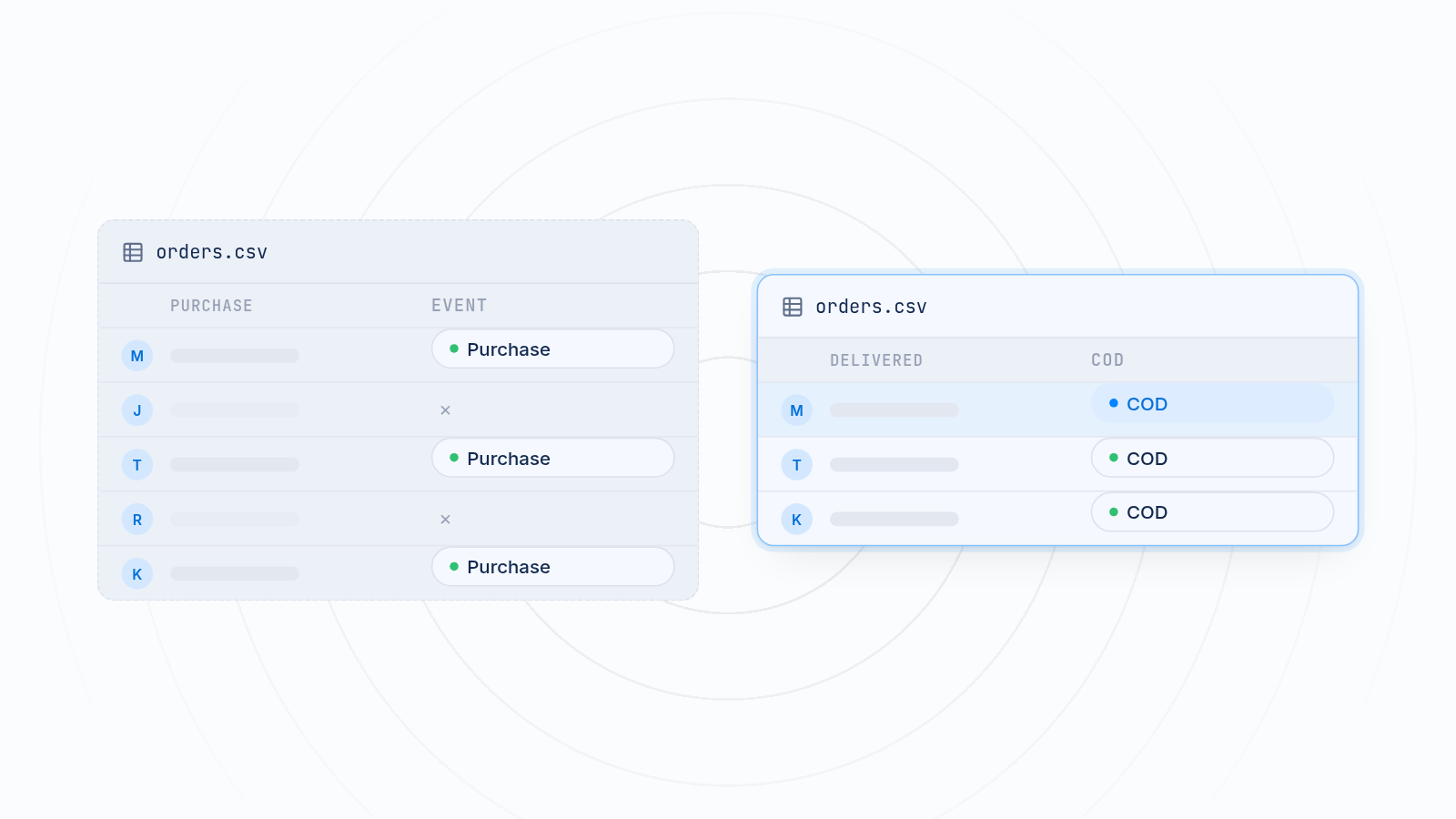
Ad platforms learn from the events you send them, so fake purchases teach them to find the wrong people. If buyers who refuse delivery look like your best customers, the platform finds more of them.
That has two costs:
- Wasted ad spend. Your budget goes toward people who place orders but never pay. Your reported cost per purchase looks good while your real cost per paid order is much higher.
- Weaker lookalike audiences. A lookalike built from placed orders copies everyone who ordered, including people who refused. A lookalike built from delivered orders copies people who actually paid.
Cleaner purchase data gives the platforms a better target. You can read more in how lookalikes depend on purchase data. The platform can only copy what it sees.
What counts as a real COD purchase
A real COD purchase is an order where the customer accepted the package and paid. Decide which moment in your process proves that, and send the Purchase event then.
Most stores pick one of these:
| Trigger | When it fires | Good for | Watch out for |
|---|---|---|---|
| Order placed | At checkout | Nothing COD-specific. This is the default | Counts refused orders |
| Order confirmed | After you verify the customer, such as by phone or message | Stores that confirm every order | Confirmed orders can still be refused |
| Order delivered | When the courier confirms delivery | Closest match to real revenue | Slower signal, so ads learn later |
| Marked as paid | When you mark the order as paid in Shopify | Stores that reconcile cash after delivery | Depends on how fast your team updates orders |
If you can, use delivered or paid. If your courier takes a long time to report back, confirmed orders are a middle option. Many stores keep a placed-order signal under a different event name and use Purchase only for the confirmed or delivered step.
Set up COD orders so you can tell them apart
Tag your COD orders so you can separate them from prepaid orders in reports and in your ad data. Start with the payment method itself.
In Shopify, go to Settings > Payments and add cash on delivery as a manual payment method. You can write instructions that show on the order confirmation page, such as "Pay the driver in cash."
Then set up a simple tag scheme for order status. For example:
COD - NewCOD - ConfirmedCOD - DeliveredCOD - Returned
These tags make it easy to filter orders in Shopify. They also give you a clear list of which orders should count as purchases. Prepaid orders carry no COD tag, so you can compare both groups.
How to send Purchase only for confirmed or delivered orders
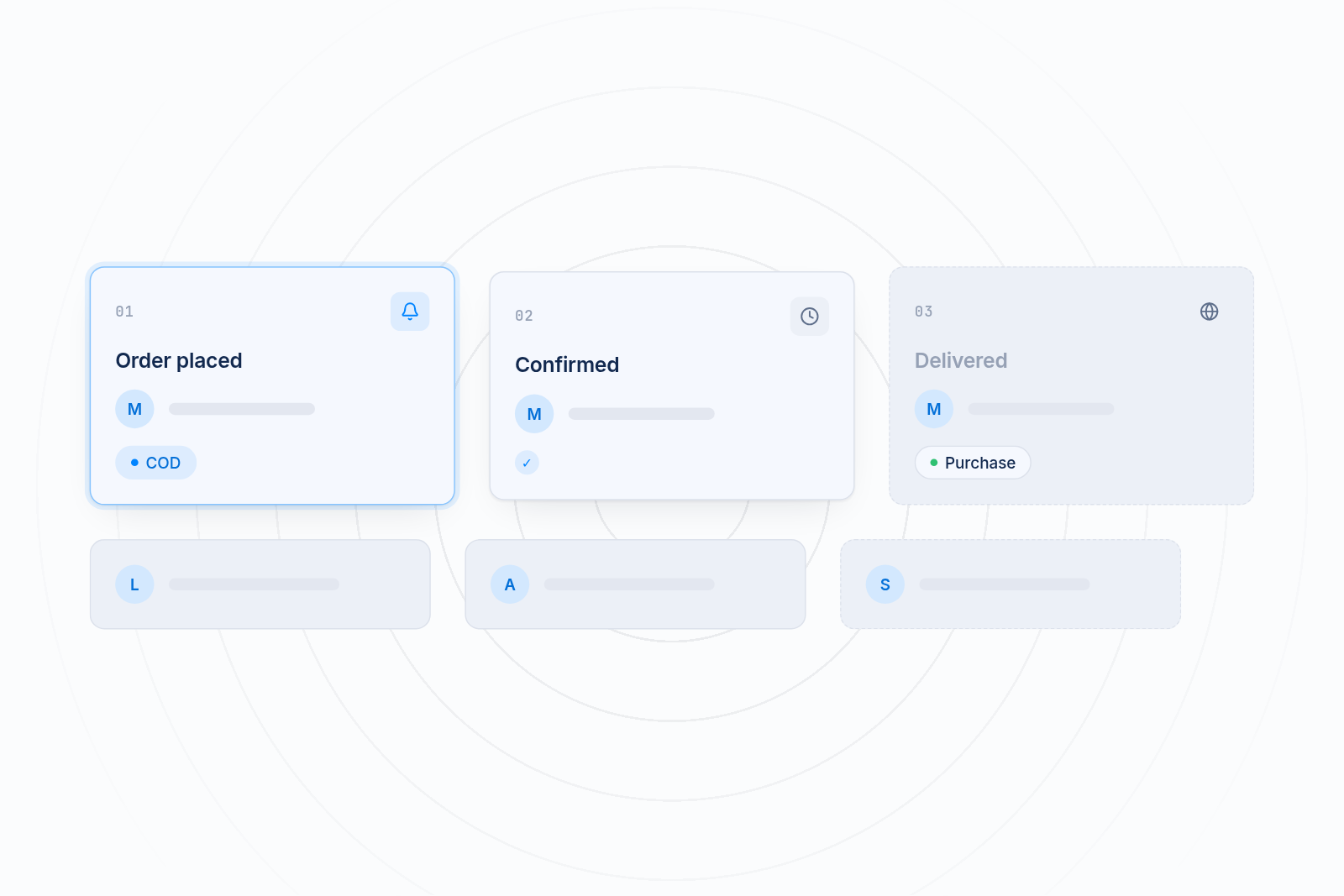
Send Purchase only at the confirmed or delivered step, after the order has been placed and checked. The process has three steps: place, confirm, then report.
- Order placed. The customer chooses cash on delivery. Tag the order as COD. Do not count it as a sale yet.
- Order confirmed. Verify the customer and dispatch the order. Update the tag. Add the courier's tracking number when you fulfill it, so you can follow the shipment.
- Order delivered. When the courier confirms delivery and collects the cash, mark the order as paid in Shopify. This is when the Purchase event should reach Meta and TikTok.
Refused or returned orders never reach step 3. They never become a Purchase, so the platforms never learn from them.
If you ship without a tracking number, you can mark an order as delivered from the order details page once the customer has it. Whichever way you do it, keep the status up to date. The ad data is only as good as your order records.
Cover both Meta and TikTok
Apply the same rule to both platforms: Purchase only for confirmed or delivered orders. Each platform has its own pixel, so set up and check each one.
Meta
Meta uses your pixel to build custom audiences and lookalikes from Purchase events. If placed orders feed it, your lookalikes inherit the refusal problem. Check in Events Manager that a test COD order does not show as a Purchase until it reaches your chosen step. If the pixel isn't firing at all, see why your Facebook pixel isn't working. You can read how MultiPixels handles the Meta pixel setup.
TikTok
TikTok works the same way. Its pixel learns from purchase events to find similar shoppers. Send Purchase for delivered orders, and check your TikTok events tool after a test order to confirm it fires once and at the right moment. If you haven't installed it yet, follow the TikTok pixel setup guide.
On both platforms, keep one install per pixel. Duplicate installs, such as old theme code plus an app, double your counts and make the gap worse.
How MultiPixels helps you manage this without code
MultiPixels installs and manages Meta, TikTok and other pixels from one dashboard, with no code or tech team required. You add each platform's pixel ID, and the app handles the install through Shopify.
For a COD store, it does this:
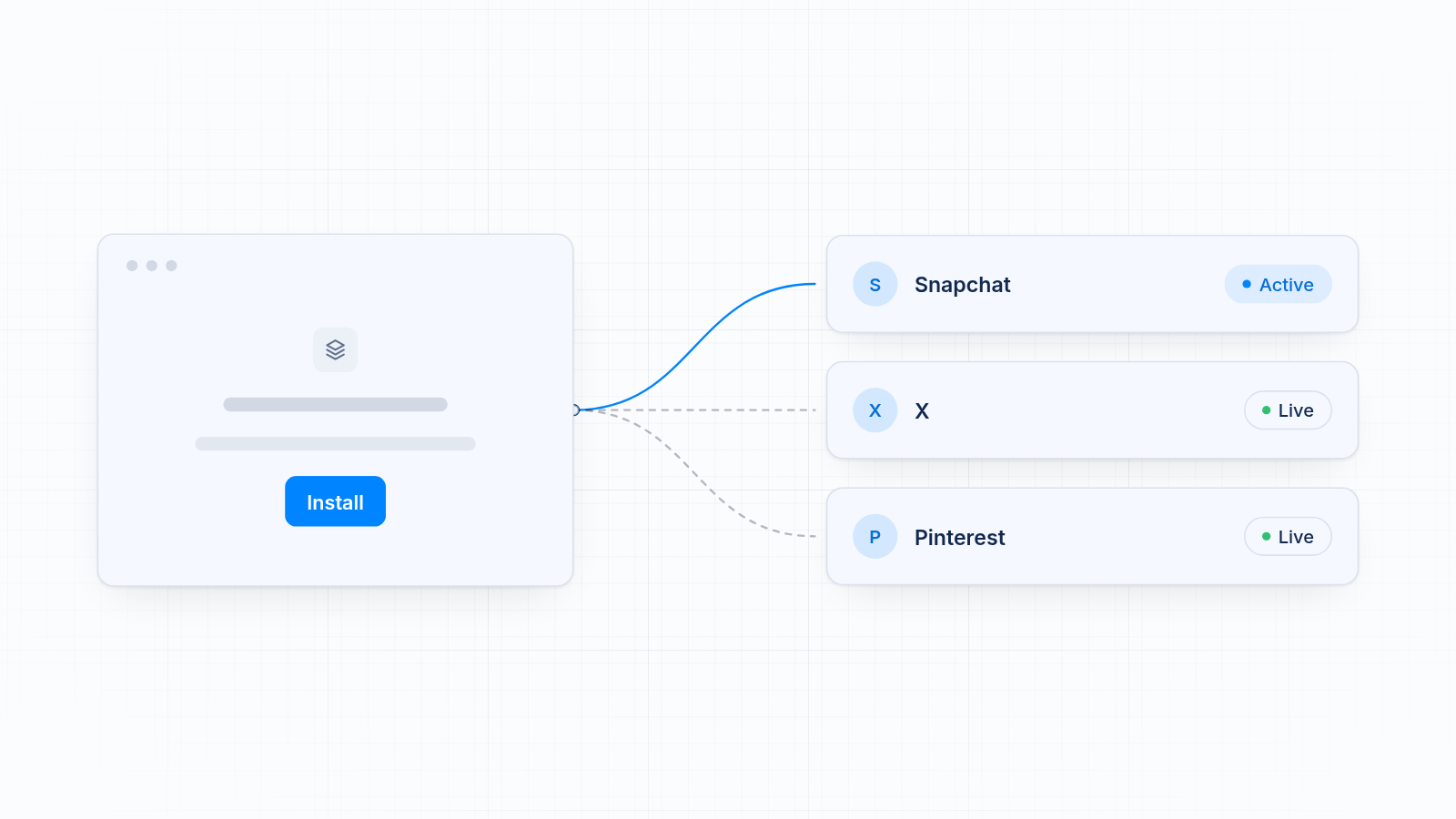
- Keeps your Facebook, Instagram, TikTok, Snapchat, X and Pinterest pixels in one place, so duplicates are easy to spot.
- Lets you run a backup pixel, so data keeps collecting if an ad account has trouble.
- Supports custom audience and lookalike building on higher plans, so you can build from cleaner purchase data.
It does not collect cash, confirm deliveries or update your order status for you. You still decide which order stage counts as a purchase and keep your Shopify orders current. MultiPixels is a paid app once the 10-day free trial ends, with plans at $9.99, $19.99 or $39.99 a month.
Your options compared
Stores usually pick between doing nothing, using each platform's own app, hiring a developer, or using a pixel app. Here is how they compare for COD.
| Option | What it does | Where it falls short for COD |
|---|---|---|
| Default setup | Fires Purchase at order placement | Counts refused orders |
| Platform sales channel apps | Connect one pixel per platform | Cover one platform each and follow the default timing |
| Developer | Writes custom event logic | Each change is a new bill, and code can break when your theme updates |
| MultiPixels | Installs and manages pixels for six platforms in one dashboard, with a backup pixel option | Does not confirm deliveries or collect cash. Paid after the 10-day free trial |
How to check your numbers match real revenue
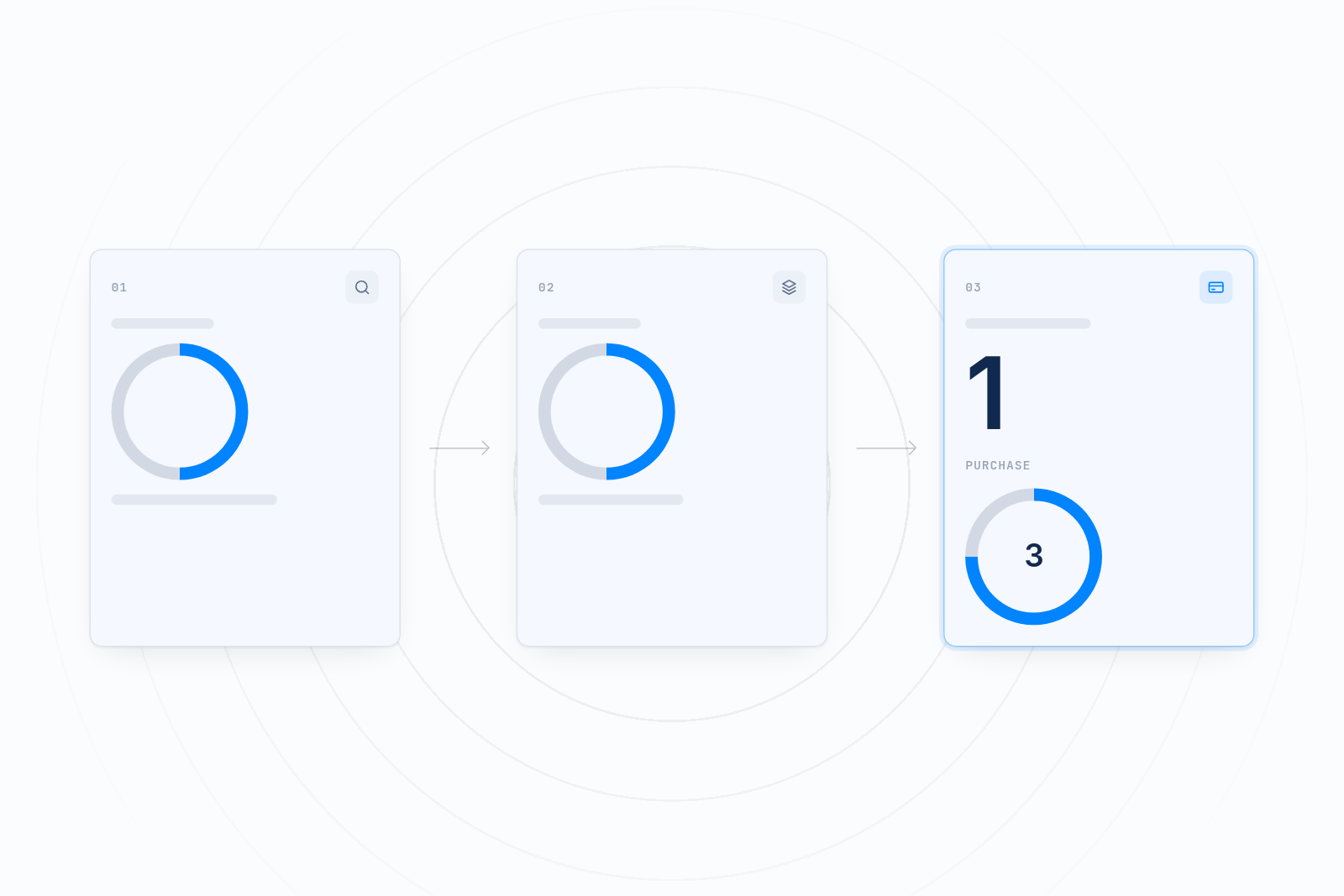
Compare your ad platform's purchase count with your paid COD orders over the same period. They should be close once Purchase is tied to delivery.
Try this check:
- Pick a date range, such as the last 14 days.
- Count the COD orders you marked as delivered and paid in Shopify.
- Add your prepaid orders.
- Compare that total with the purchases shown in Meta and TikTok.
Small differences are normal, because pixels run in the browser and can be blocked. A large gap points to duplicate installs or events firing too early. For more on diagnosing this, see how to fix a pixel and Shopify analytics data mismatch. Run a test order through each stage and watch each platform's events tool to see exactly when Purchase appears.
Start tracking COD purchases that match real revenue
Send Purchase only for confirmed or delivered orders, tag your COD orders, and give Meta and TikTok cleaner data to learn from.
Install the MultiPixels app from Shopify and start your 10-day free trial.