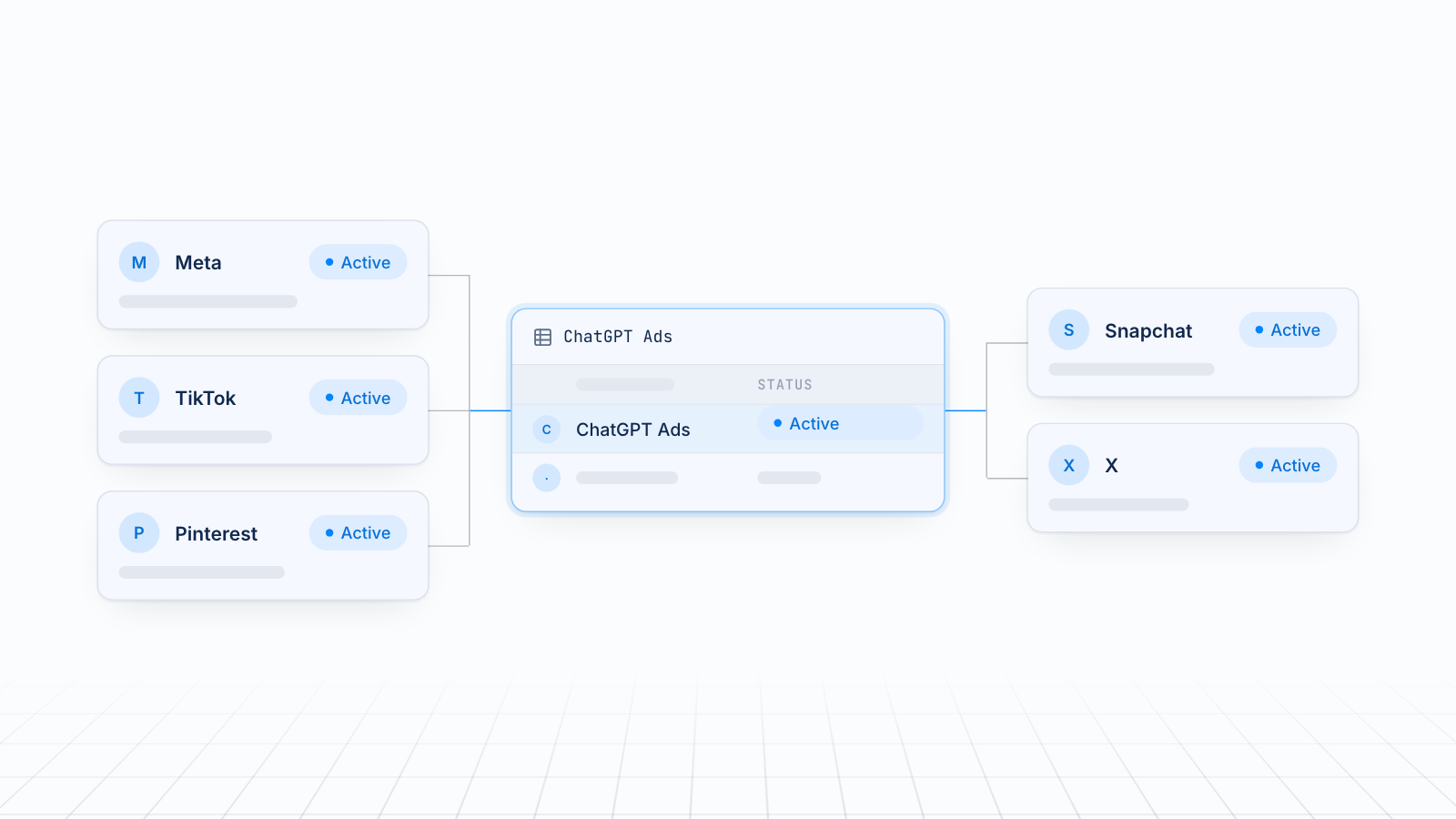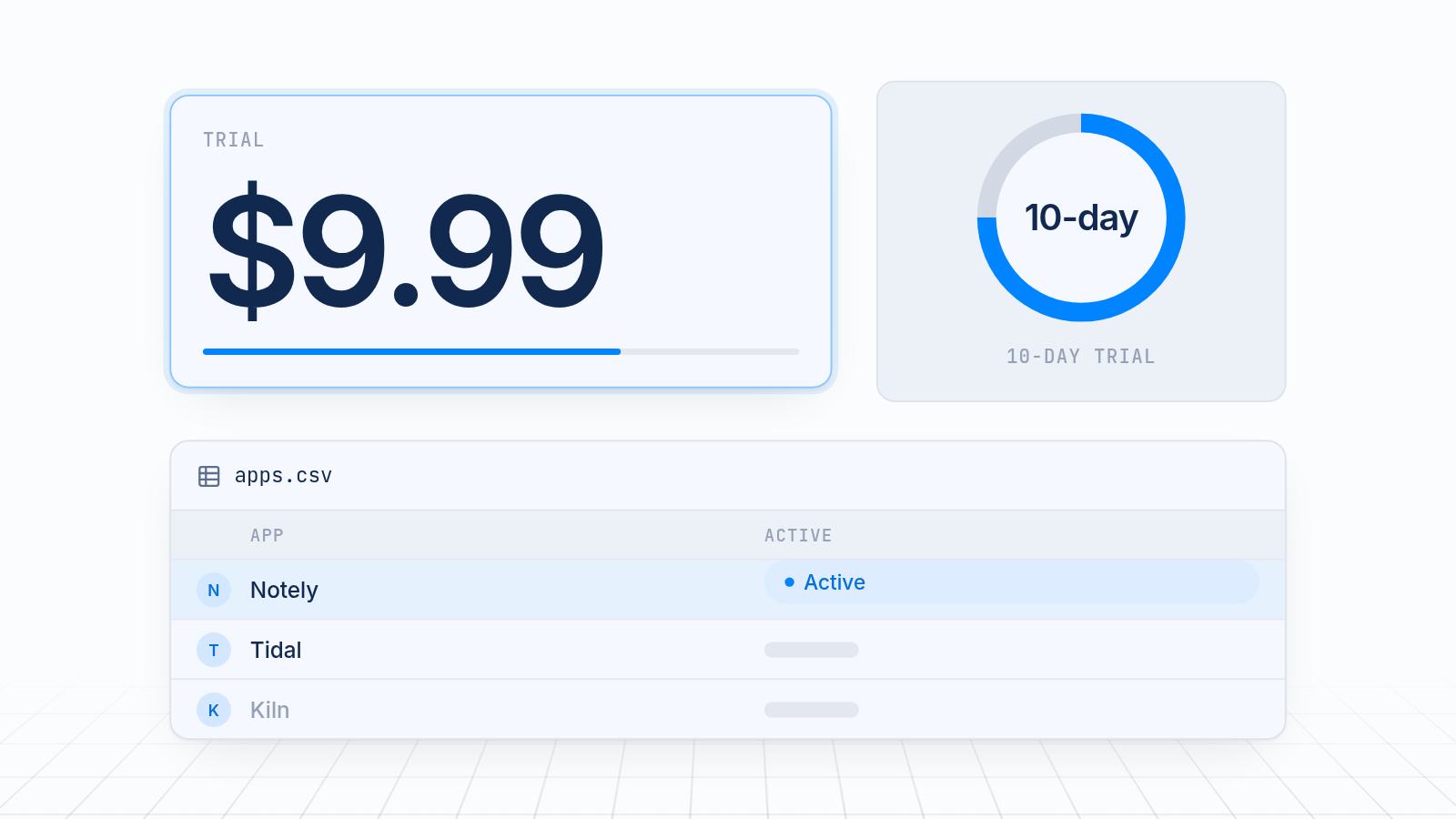
The best pixel app for agencies managing several Shopify stores scores well on four things: how easily it handles many stores, how simply clients can grant access, what it costs per store, and how fast a new store goes live. MultiPixels meets all four with no code or tech team required. It runs Facebook, Instagram, TikTok, Snapchat, X and Pinterest pixels in one place, adds a backup pixel for each store, and costs $9.99, $19.99 or $39.99 a month after a 10-day free trial.
Key takeaways
Judge a pixel app on four points: multi-store handling, client access, cost per store and setup speed.
When every store is set up differently, client ad spend gets wasted and reports stop matching.
MultiPixels covers six ad platforms and a backup pixel for each store, with no code or tech team required.
Plans are $9.99, $19.99 and $39.99 a month after a 10-day free trial.
Test any app on one real client store, with a test order, before you roll it out to the rest.
Why a pixel app matters more when you run several stores
Small setup differences between stores add up to wasted client ad spend and unclear reporting. One store has its pixel in the theme. Another uses a sales channel app. A third has two copies of the same pixel. Each one reports differently.
The ad platforms then learn from thin or doubled data, and you pay for clicks they can't learn from. Your client asks why Shopify shows one number and Facebook shows another, and you spend billable time explaining. Our guide to fixing a pixel and Shopify Analytics data mismatch covers the usual causes.
A repeatable setup fixes most of this. Use the same app, steps and checks on every store, and problems are easy to spot.
The four things to judge a pixel app on
Judge a pixel app on how easily it handles many stores, how simply clients can grant access, what it costs per store and how fast a new store goes live. Check each one before you compare features.
1. How easily it handles many stores
The app should work the same way on every store you manage. Look for one clear screen that shows which pixels are installed and which platforms are on. If you have to hunt through settings to learn what a store runs, mistakes will slip through.
Check that it works the same on a small store and a Shopify Plus store. Different tools for different plans make training harder.
2. How simply clients can grant access
Client access shouldn't mean a long back-and-forth. Most agencies get in through Shopify's staff or collaborator access. The app shouldn't need extra logins on top of that, or a developer on the client's side.
Decide what you need from the client. A pixel ID from each ad platform is reasonable. A request to edit theme files is not.
3. What it costs per store
Cost per store is the monthly fee multiplied by the number of stores you manage. A price that looks small for one store can add up across ten. Check whether each store needs its own plan, and what the limits are on pixels, platforms and orders. For a broader look at pricing, see how Shopify pixel manager app pricing compares.
Compare the fee with the ad spend it protects. If a client spends $2,000 a month on ads, a $19.99 app is about 1% of that. If it fixes tracking gaps, the fee is easy to justify. Verify billing before you roll out, since Shopify app plans and limits can vary by store.
4. How fast a new store goes live
A new client store should be tracking in minutes. Setup that needs a developer, a theme edit or a long review slows onboarding and delays reporting.
Time a real setup on one store. Include removing old pixel code, adding each pixel and placing a test order.
A checklist for comparing pixel apps
Ten yes, no or unclear questions let you compare any pixel app on the same terms. Score each line yes, no or unclear, and ask the vendor about anything unclear.
- It should install pixels without code or a developer.
- It should cover every ad platform your clients use.
- You should be able to see what is installed on a store at a glance.
- It should support a backup pixel for each store.
- It should avoid theme edits, so theme updates do not break tracking.
- You should get access without extra logins or developer help from the client.
- The price per store should be clear, including limits on pixels and orders.
- There should be a free trial, so you can test on a real store.
- You should be able to repeat the same setup on every store.
- A test order should fire page views, add to cart, checkout and purchase once each.
An app that fails items 1, 5 or 10 will cost you time on every store. Treat those as firm requirements.
How the options compare
The table compares the common ways agencies handle pixels across client stores. The entries for other approaches are general, so confirm details on each listing before you decide.
| MultiPixels | Single-platform apps | Facebook-focused multi-pixel apps | Developer-built setups | |
|---|---|---|---|---|
| What it does | Installs and manages pixels for six ad platforms | One app per ad platform | Manages several Facebook or Meta pixels | Custom code per store |
| Platforms | Facebook, Instagram, TikTok, Snapchat, X, Pinterest | One each | Mostly Meta | Anything, if coded |
| Backup pixel | Yes, for each store | Varies | Often yes | Only if built |
| Setup without a developer | Yes, no code or tech team required | Yes | Yes | No |
| Same setup across stores | Yes | Different app and steps per platform | Same for Meta only | Differs by developer |
| Price | $9.99, $19.99 or $39.99 a month after a 10-day free trial | Often free | Check each listing | Billed per change |
MultiPixels handles pixel setup, backup and audience tools. It doesn't replace your ad platforms or write your ads, and it is a paid app once the trial ends. If your clients advertise only on Meta, a Meta-focused app may be enough. If they run several platforms, one app for all of them keeps your process simple.
How MultiPixels meets each point
MultiPixels meets the four points with a no-code setup, one dashboard for six platforms, a backup pixel for each store and three flat plans.
Handling many stores
Each store gets one dashboard with a row for every platform. A teammate can open a store and see what is installed at a glance. You repeat the same steps on every store, so your process stays the same as your client list grows. You can read more on the agencies page.
Client access
You paste a pixel ID for each platform and save. The client doesn't need to edit theme files or hire a developer. No code or tech team required. Your access request stays short: staff access to the store, plus the pixel IDs.
Cost per store
Plans are $9.99, $19.99 and $39.99 a month after a 10-day free trial. Starter gives you unlimited pixels to install, track and back up. Advanced adds iOS tracking, a Custom Audience Builder and an FB Lookalikes Builder. Premium is for Shopify Plus. Pick the lowest plan that covers each client's needs, and move a store up only when it needs the extras.
Setup speed
MultiPixels installs each pixel through Shopify's customer events, so nothing goes into the theme. A theme update won't break your tracking, and you skip the editing step. Setup takes a few minutes per platform. For background, see adding multiple ad pixels to Shopify without editing theme code.
Backup pixel for each store
A backup pixel keeps collecting data if a client's ad account is restricted or blocked. Without one, your client can lose history and restart learning from zero. With MultiPixels, you add a backup for each store as part of the same setup.
A repeatable setup for each new client store
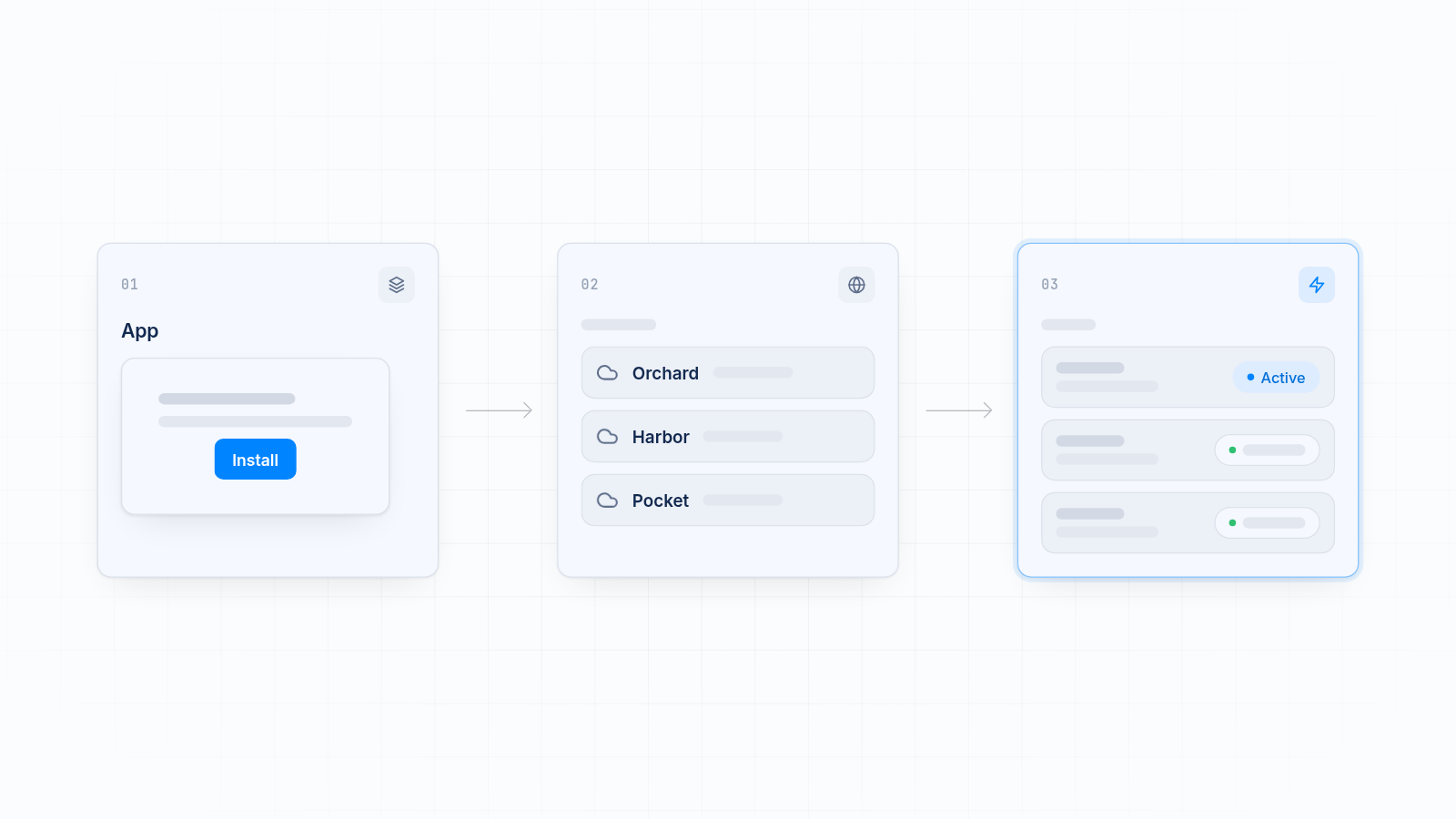
Every client store gets the same steps in the same order. Use this routine.
- Get access. Ask for staff access to the store and the pixel ID from each ad platform.
- Clear old code. Go to Settings > Customer events and note what is listed. Remove old pixel code from the theme so no pixel fires twice.
- Install the app. Open MultiPixels from the Shopify App Store and approve the permissions.
- Add each pixel. Choose a platform, paste the pixel ID and save. Repeat for every platform the client runs.
- Add a backup pixel. Set it up now, before you need it.
- Place a test order. Check that page views, add to cart, checkout and purchase each fire once on every platform.
- Record the setup. Write down what is installed so anyone on your team can check it later.
Two installs of the same pixel double your counts and send budget the wrong way. Step 2 is the one most often skipped.
What goes wrong when setups differ
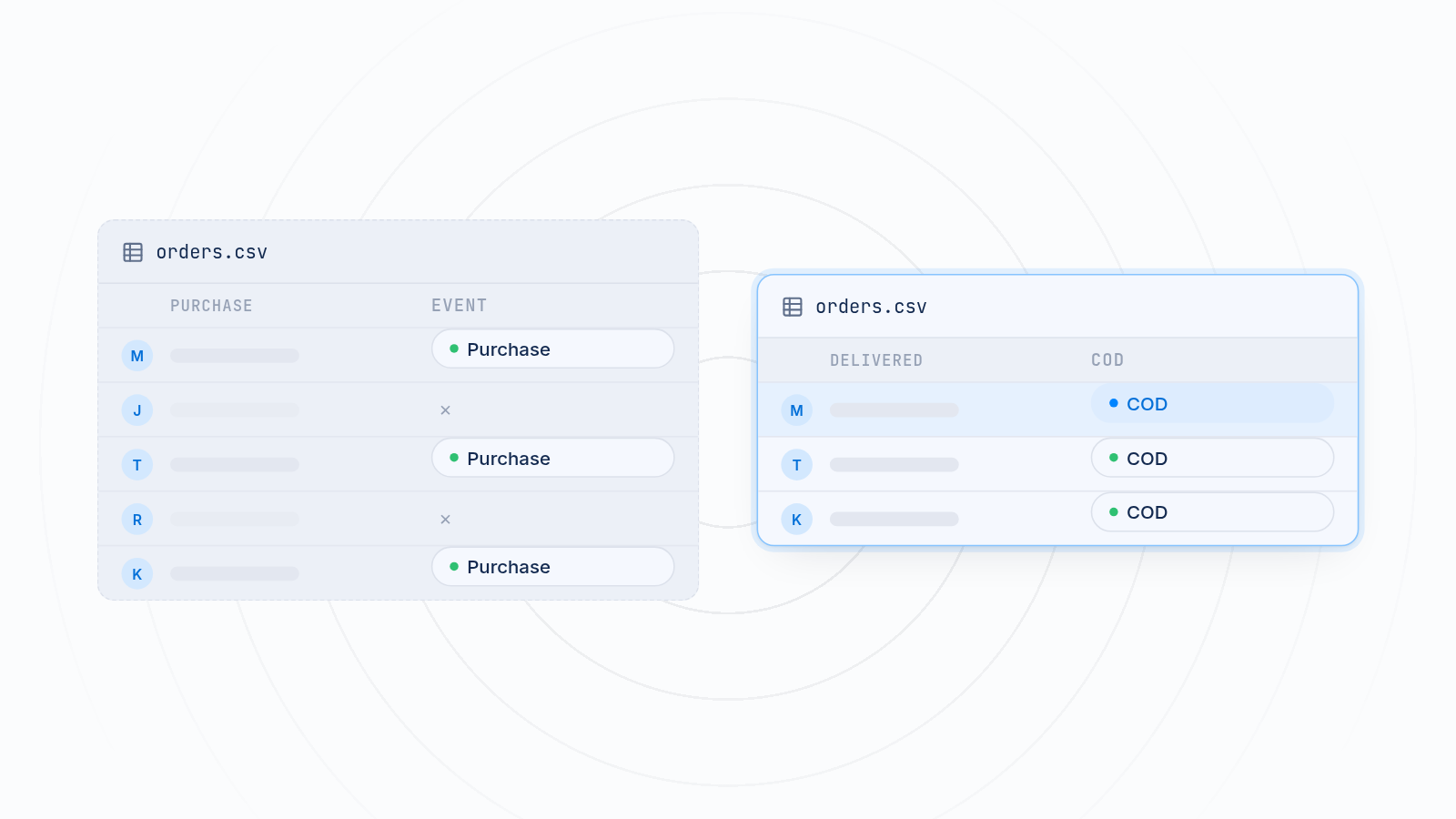
Differing setups cause duplicate events, missing purchases and reports that don't match. Each one costs your client money.
- Duplicate pixels inflate purchase counts, so ads look better than they are and budget moves the wrong way.
- Missing purchase events leave the ad platform blind to sales, so it can't find more buyers.
- Theme-only installs miss checkout, so reported purchases fall below what Shopify recorded.
- No backup pixel means one account problem can wipe out a client's learning.
Some gap between pixel data and Shopify Analytics is normal, because pixels run in the browser and can be blocked. A sudden or large gap points to a problem, and duplicate installs are the usual cause.
When another app fits better
MultiPixels fits agencies that run paid social for several stores and want a low-cost, no-code setup. A different tool fits better in some cases.
- Meta-only clients. An app built around Meta pixels may do all you need.
- Deep analytics work. If your reports center on GA4 or Google Ads, look at a tool built for that. Our comparison of Meta Pixel vs GA4 for Shopify can help you decide.
- One store with many markets. Some apps route each market to its own pixel.
You can also run a pixel app next to a reporting tool. They solve different problems.
How to test an app before you roll it out
Test on one real client store first, using the free trial. Place a test order and check each platform's events tool. Time the whole setup, then repeat it on a second store. If the second store goes faster and cleaner, the app suits an agency workflow.
Try MultiPixels on your next client store
If you manage paid social for more than one Shopify store, a single repeatable setup saves time and protects client ad spend. Install the MultiPixels app from Shopify and start the 10-day free trial.