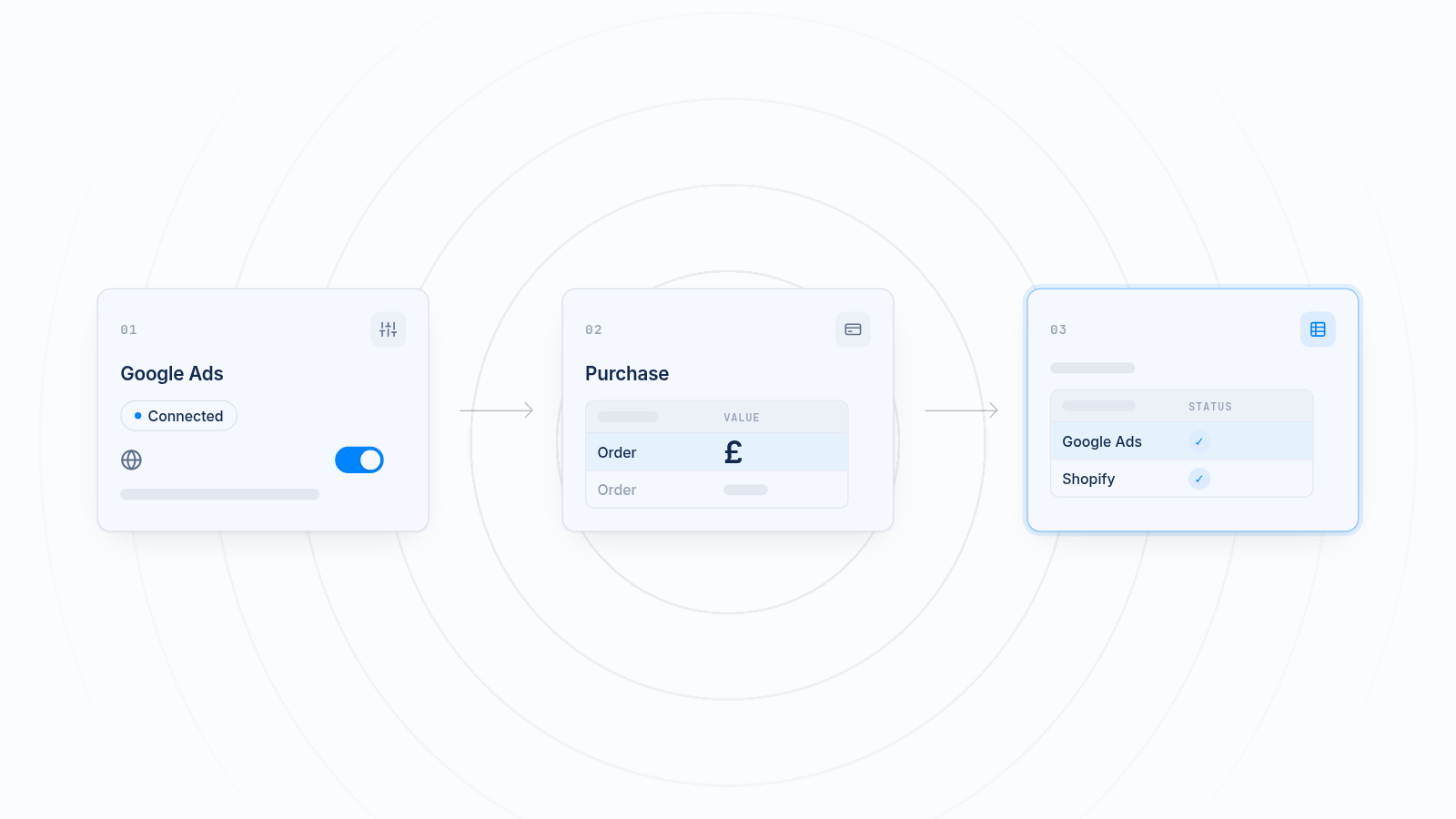
To set up Google Ads conversion tracking on Shopify, connect your Google Ads account to your store, create a purchase conversion action, make sure each order sends its real value, then place a test order to confirm it shows up in both Google Ads and Shopify. The easiest route is Shopify's Google & YouTube app. No code or tech team required. This guide covers each step, the common reasons tracking fails, and how Google Ads fits next to your other ad pixels.
Key takeaways
Without conversion tracking, Google Ads can't tell which clicks lead to sales, so you spend your budget with no feedback.
Connect Google Ads through Shopify's Google & YouTube app, then set Purchase as your main conversion action.
Pass the real order value so reports show true revenue, not a flat count.
Duplicate tags, missing values and a wrong conversion label are the most common causes of bad data.
MultiPixels runs your Facebook, Instagram, TikTok, Snapchat, X and Pinterest pixels from one dashboard, with no code or tech team required.
How do you track Google Ads conversions on Shopify?
Link your Google Ads account to your store and send a Purchase event to Google each time an order is completed. Google then ties that sale to the ad click that started it.
Shopify's Google & YouTube app is the usual way to do this. It connects the two accounts and maps store events such as purchase, add to cart and checkout started to Google Ads conversion actions. You don't paste anything into your theme.
Google Ads bids based on what it learns. If it never sees your sales, it can't tell a strong campaign from a weak one. You keep paying for clicks that never convert, and the good campaigns don't get more budget.
Why Google Ads conversion tracking matters for ad spend
Tracking shows which ads earn money and which ones waste it. Without it, you see clicks and costs, but not sales.
That gap hurts in two ways:
- Wasted ad spend. Weak campaigns look the same as strong ones, so they keep running.
- Poor bidding. Google's automated bidding relies on conversion data. With no purchase signal, it has little to work with and makes weaker choices.
With tracking in place, you can see which campaigns bring orders and move budget toward them. Set it up before you raise spend.
Before you start
You need three things ready:
- A Google Ads account. You need admin access to it.
- A Google account that has admin access to that Google Ads account.
- Admin access to your Shopify store.
Also check whether an older tracking tag already exists. If you or an agency pasted a Google Ads tag into your store earlier, note where it lives. You'll want to remove it later so orders aren't counted twice.
Step 1: Connect Google Ads to your Shopify store
Connect Google Ads by linking your accounts in Shopify's Google & YouTube app, which takes a few clicks.
- In Shopify admin, open Sales channels and select Google & YouTube. If it isn't there, install it from the Shopify App Store.
- Connect the Google account that has admin access to your Google Ads account.
- Find the Google Ads conversion measurement section and click Get started.
- Choose your Google Ads account and finish the connection.
Once connected, Shopify can send store events to Google Ads. The next step sets which events count as conversions.
Step 2: Create a purchase conversion action
A conversion action tells Google Ads which store event counts as a sale. For most stores, that's Purchase.
In the Google & YouTube app, open the conversion measurement area and review the events Shopify suggests. Typical ones are:
- Purchase, the main sales event
- Begin checkout
- Add to cart
You can link an existing Google Ads conversion action to a Shopify event, or create a new action inside the app. Either works. Save your choices and click Confirm.
Then open Google Ads and go to Goals > Conversions > Summary. Check that the Purchase action is listed. Set it as Primary if you want bidding to optimize for it. Keep actions like add to cart as secondary, so they don't pull bidding toward people who never buy.
If you see a prompt for enhanced conversions, you can turn it on once basic purchase tracking works. It shares hashed customer details such as email with Google to improve how sales are matched to ads.
Step 3: Pass the right order value
Every Purchase event should carry what the customer actually paid. That's what makes your reports show real revenue.
A conversion without a value is only a count. Google Ads can tell you ten sales happened, but not whether they were ten $15 orders or ten $150 orders. That changes how you judge return on ad spend.
Check these points in Google Ads:
- The Purchase action is set to use a different value for each conversion, not one fixed number.
- The currency matches your store currency.
- The action counts every conversion, not just one per ad click. A shopper may buy more than once, and each sale should count.
If the values look wrong later, look here first.
Step 4: Check that conversions appear in Google Ads and Shopify
Place a test order, then confirm it appears in Google Ads and matches the order in Shopify. Do this before you spend more.
- Place a test order. Use a low-priced product or a test payment method.
- Check the Google tag. Use Google Tag Assistant or the conversion diagnostics in Google Ads to see whether the tag fires.
- Look in Google Ads. Go to Goals > Conversions > Summary and find your Purchase action. Reporting can take time, so don't worry if nothing shows right away.
- Match it to Shopify. Compare the order number, value and currency with your Shopify orders.
One order in Shopify should equal one conversion in Google Ads. If you get two, you likely have duplicate tags. If you get none after a reasonable wait, check the connection and conversion setup.
Small gaps between Google Ads and Shopify Analytics are normal. Large ones are worth chasing.
Why Google Ads conversion tracking stops working
Tracking usually fails because of duplicate tags, missing values or a wrong conversion label. Each one wastes spend in a different way.
| Problem | What you see | What it costs you |
|---|---|---|
| Duplicate tags | One order counted twice | Inflated results, so you back campaigns that look better than they are |
| Missing values | Conversions with no revenue, or all set to the same number | You can't judge return on ad spend, and bidding has less to learn from |
| Wrong conversion label | Test orders never appear | Real sales go unseen, so good ads look like they fail |
| Old tags left behind | Odd counts after a setup change | Mixed signals that confuse bidding |
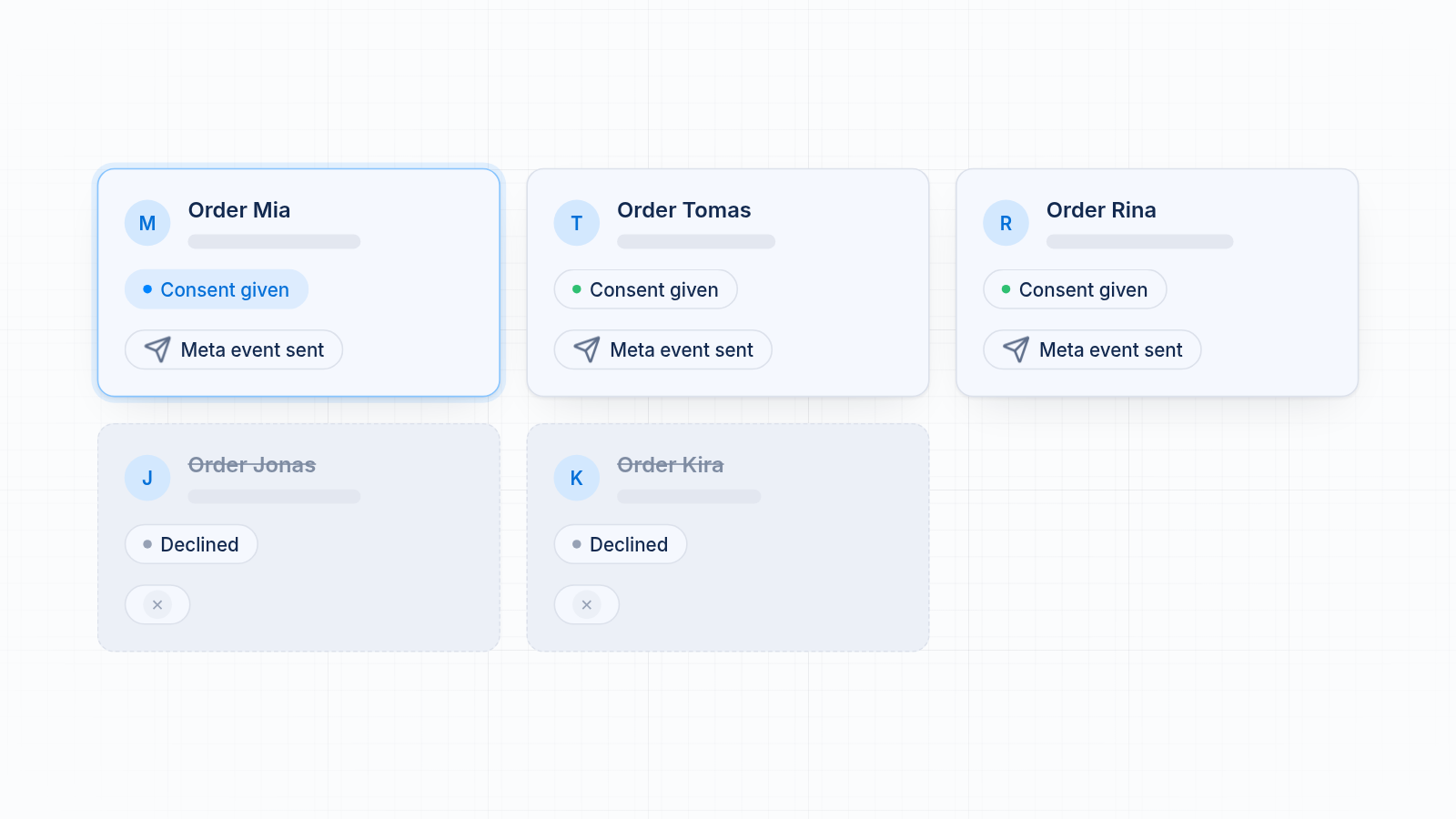
| Consent settings | Gaps when shoppers decline tracking | Fewer visible sales than you actually made |
Duplicate tags
Duplicates happen when the same purchase tag is installed in more than one place. For example, you connect the Google & YouTube app and also keep an old tag from a past setup, or one added through Google Tag Manager. Both fire, and one order counts twice. Keep one install only.
Missing values
If the Purchase event doesn't carry the order total, reports show sales without revenue. Open the conversion action in Google Ads and confirm it uses a different value for each conversion.
A wrong conversion label
Manual setups use a conversion ID and a label. If either is wrong, Google never matches the event to your action. That's one more reason to use the app. Shopify handles the mapping for you.
Old checkout scripts
Shopify has moved toward its newer checkout and customer events system. Old instructions that tell you to paste code into checkout or the order status page may no longer work. Avoid them.
Google Ads and your other ad pixels
Google Ads tracking runs next to your other ad pixels, and each platform needs its own setup. Most stores that run Google Ads also run Facebook, Instagram, TikTok, Pinterest, Snapchat or X ads. Each pixel is another thing to install and keep clean.
Here is how the options compare:
| Option | What it does | Where it falls short |
|---|---|---|
| Google & YouTube app | Connects Google Ads and maps Shopify events to conversions | Covers Google only. Other platforms need their own setup |
| Manual custom pixels | Gives you full control per platform | Requires code. A small mistake can break events or double count them |
| Hiring a developer | Builds custom tracking for each platform | Every change is a new bill, and code can break when things update |
| MultiPixels | Installs and manages Facebook, Instagram, TikTok, Snapchat, X and Pinterest pixels from one dashboard, with a backup pixel option | Does not manage Google Ads conversion tracking. It is a paid app after the 10-day free trial |
MultiPixels does not replace the Google & YouTube app. Use Shopify's app for Google Ads. Use MultiPixels for the other platforms, so every pixel lives in one place. It also doesn't write your ads or replace your ad accounts.
Why one place for your pixels keeps data consistent
When you run your pixels from one place, you can see every install at once. A duplicate or a missing pixel is easy to spot instead of buried in separate tools.
MultiPixels works like this:
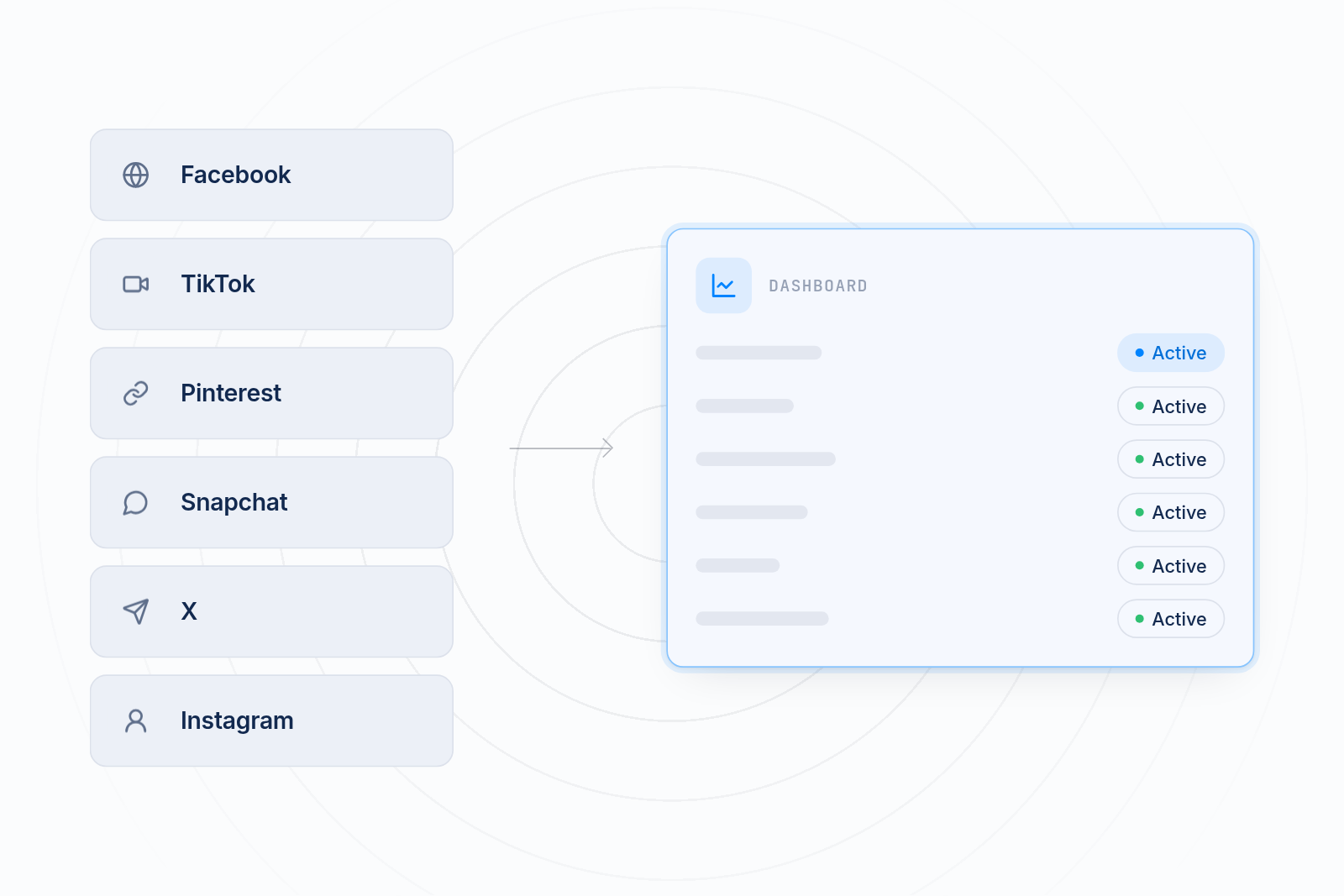
- One dashboard. Facebook, Instagram, TikTok, Snapchat, X and Pinterest pixels sit together.
- No theme edits. The app installs through Shopify, so you don't touch theme files.
- A backup pixel. Data keeps collecting if an ad account runs into trouble.
- Audience tools. Higher plans include custom audience and lookalike building from your store data.
No code or tech team required. You can see the supported platforms on the integrations page.
When your Google Ads numbers and your other platform numbers all come from clean, single installs, comparing them gets easier. You can see which channel drives sales and spend accordingly.
A quick checklist before you scale spend
Confirm these seven things once your setup is live:
- Google Ads is connected through the Google & YouTube app.
- Purchase is set as the primary conversion action.
- The action uses a different value for each conversion and counts every conversion.
- Old Google Ads tags are removed, so only one install exists.
- A test order shows up once in Google Ads, with the right value.
- The same order matches in Shopify.
- Your other ad pixels are installed once each.
Start tracking every ad platform
Google Ads tracking tells you which clicks turn into sales. Your other pixels do the same for every other channel. Keeping them clean means less wasted ad spend and better results from each platform.
Install the MultiPixels app from Shopify and start your 10-day free trial. Plans are $9.99, $19.99 or $39.99 a month after the trial ends.