If you advertise your Shopify store on social media, you need that platform's pixel on your store. Social media pixels record what visitors do after clicking your ads, so you can measure sales, retarget visitors and let each platform find more buyers. This post covers what social media pixels are, the five most stores need, and how to run several without trouble.
Key takeaways
Install the pixel for every social platform you advertise on.
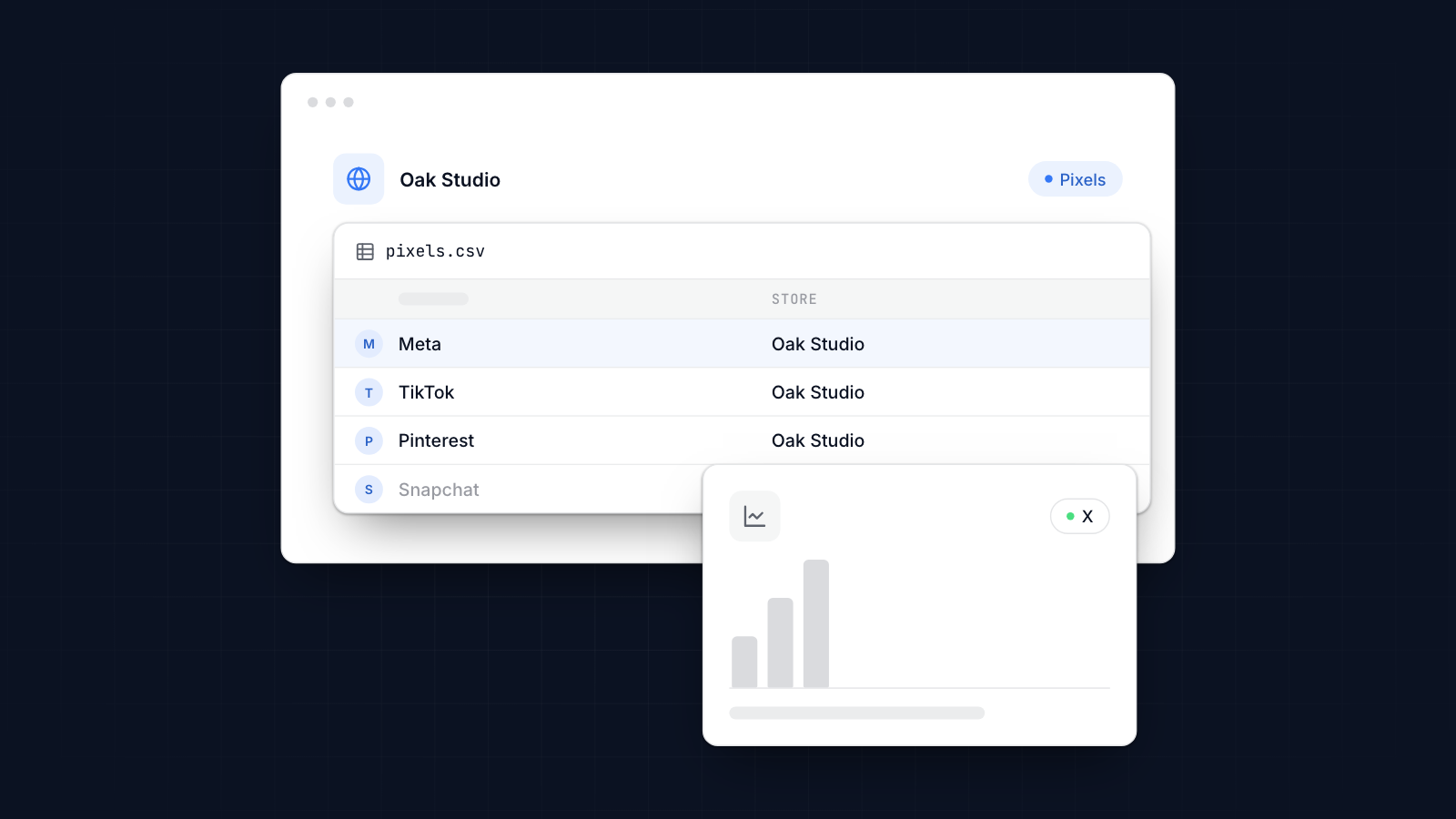
The five most Shopify stores need are Meta, TikTok, Pinterest, Snapchat and X.
Meta, TikTok, Pinterest and Snapchat all have Shopify apps that install their pixels without code.
Track the same core events everywhere: product views, add to cart, checkout and purchases.
Install each pixel once, test it, and use server-side events where the platform offers them.
What Social Media Pixels Are
A social media pixel is code from an ad platform that records what visitors do on your store and sends it back to that platform.
When someone views a product, adds it to their cart or buys, the pixel sends an event. The platform uses those events to measure your ads, build audiences of past visitors and optimize delivery toward people likely to buy. Without a pixel, the platform can count clicks but not sales.
Many stores install one pixel, or none, because they are not sure which ones they need. The rule is simple: one for each platform you spend money on.
Top 5 Social Media Pixels You Must Install on Shopify
Facebook Pixel
The Facebook pixel, now the Meta pixel, covers Facebook and Instagram ads, and is the pixel most Shopify stores start with.
It tracks product views, add-to-carts, checkouts and purchases, plus custom actions you define. With it you can retarget people who added to cart but did not buy, show ads for products people viewed, and build lookalike audiences from your buyers.
Install it with Shopify's Facebook & Instagram app and choose Maximum data sharing, which adds Meta's Conversions API. Our guide to setting up the Facebook pixel on Shopify walks through it.
TikTok Pixel
The TikTok pixel matters if you reach younger shoppers through TikTok ads. It works much like the Meta pixel.
Install it with Shopify's TikTok app and choose Enhanced or Maximum data sharing, which adds TikTok's Events API. Track purchases and add-to-carts at minimum. Our beginner's guide shows how to set up the TikTok pixel, and our guide to TikTok pixel integration covers events and the Events API in more depth.
Pinterest Tag
Pinterest is often overlooked, but it suits stores in home decor, DIY, fashion and other visual niches, because people use it to plan what to buy.
Pinterest's pixel is called the Pinterest tag. It tracks conversions and builds retargeting audiences. Install it with Shopify's Pinterest app and turn on Enhanced Match and the Conversions API if offered. Track checkout, which is Pinterest's purchase event. Our guide shows how to add the Pinterest tag.
Snapchat Pixel
Snapchat reaches Gen Z and younger millennials, mostly on phones. The Snapchat pixel measures conversions from Snapchat ads and builds retargeting audiences.
Install it with Snap's Snapchat Ads app for Shopify. Track page views, product views, add to cart and purchases, so Snapchat's delivery can optimize for buyers. Our guide to installing the Snapchat pixel has the steps.
Twitter (X) Pixel
X, formerly Twitter, has its own pixel for tracking site visits and purchases from X ads, and for retargeting.
X ads are smaller than Meta or TikTok for most stores, but worth testing if your audience is active there. There is no official X app for Shopify, so install the X pixel with a pixel app that supports it, or add its base code to your theme and track purchases with a custom pixel in Shopify's Customer events. Our guide to the X pixel explains both.
How to Manage Multiple Pixels Efficiently on Shopify
Running several pixels is straightforward if each one is installed once and you check them regularly.
Use one method per pixel: the platform's own app, or a multi-pixel app that manages them all from one place. MultiPixels, for example, installs Meta, TikTok, Pinterest, Snapchat and X pixels from one dashboard, without editing theme code. Avoid mixing an app and hand-added code for the same pixel, which counts every event twice.
Keep a list of your pixels, their IDs and where they are installed. Check each platform's events tool every week or two to make sure events are still arriving. Our guide to setting up social media pixels covers how to set up each pixel with an app or with code.
Tips to Maximize the Performance of Your Pixels
Installing the pixels is the first step. Using the data is what pays off.
- Track the events that match your goals. Product views, add to cart, checkout and purchases for every platform. Send order value and currency with purchases.
- Optimize campaigns for purchases. Not clicks or views, once you have enough purchase data.
- Retarget. Build audiences of people who viewed products or abandoned carts.
- Build lookalikes. Use your purchasers to find new people like them.
- Add server-side events. Meta, TikTok, Pinterest and Snapchat all offer server-side APIs that still work when browsers block pixels.
- Audit regularly. Re-test after theme changes, new apps or checkout changes.
Pixels earn their keep once you pay for traffic. Use them alongside the other ways to get more visitors to your store, and the free ways to promote your store such as organic social posts.
Common Mistakes & How to Avoid Them
These mistakes cost stores the most data.
- Installing one pixel and stopping. If you advertise on three platforms, you need three pixels.
- Installing a pixel twice. An app plus theme code double-counts conversions.
- Missing checkout. Code pasted into your theme does not run on Shopify's checkout, so purchases go unrecorded. Use apps or customer events.
- Wrong events. Check that each event fires on the right page, such as purchase only after an order.
- Not testing. Use each platform's helper extension and test events tool before you spend.
Some store owners worry about speed. A handful of pixels, each installed once, has little effect. Duplicate and unused pixels are what slow a store down, so remove them.
Conclusion
Install the social media pixels for the platforms you advertise on: for most Shopify stores that is Meta, TikTok, Pinterest, Snapchat and X. Use each platform's app or a multi-pixel app, track the core shopping events, add server-side events where you can, and test everything.
MultiPixels installs Meta, TikTok, Pinterest, Snapchat, X and GA4 pixels on a Shopify store without editing theme code. Install MultiPixels on your Shopify store to run several tracking pixels at once.