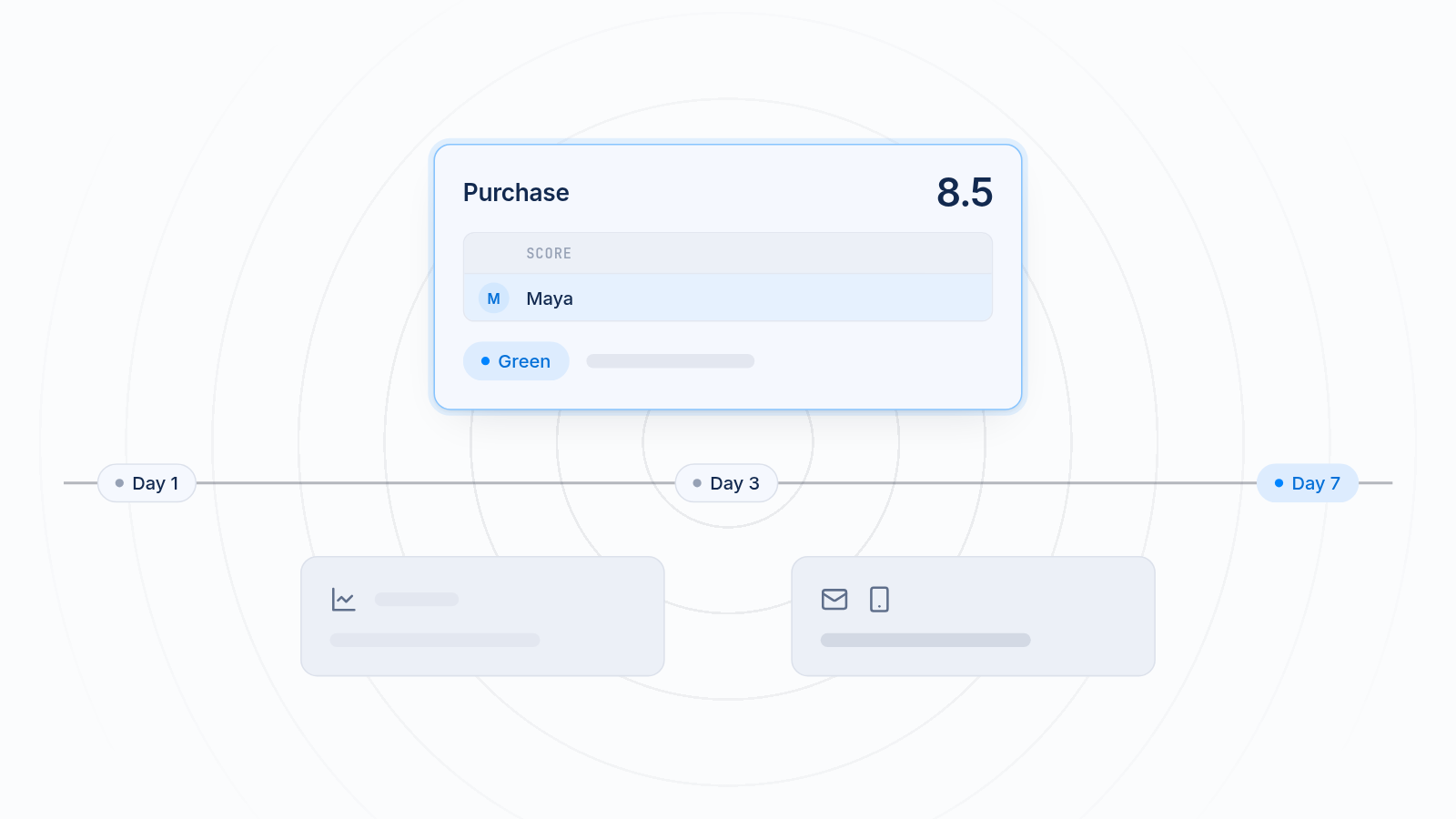
If you run Snapchat ads for your Shopify store, the Snapchat pixel tells you what people do after they tap your ad: who browses, who adds to cart, who buys and who leaves. Without it, you can see taps but not sales.
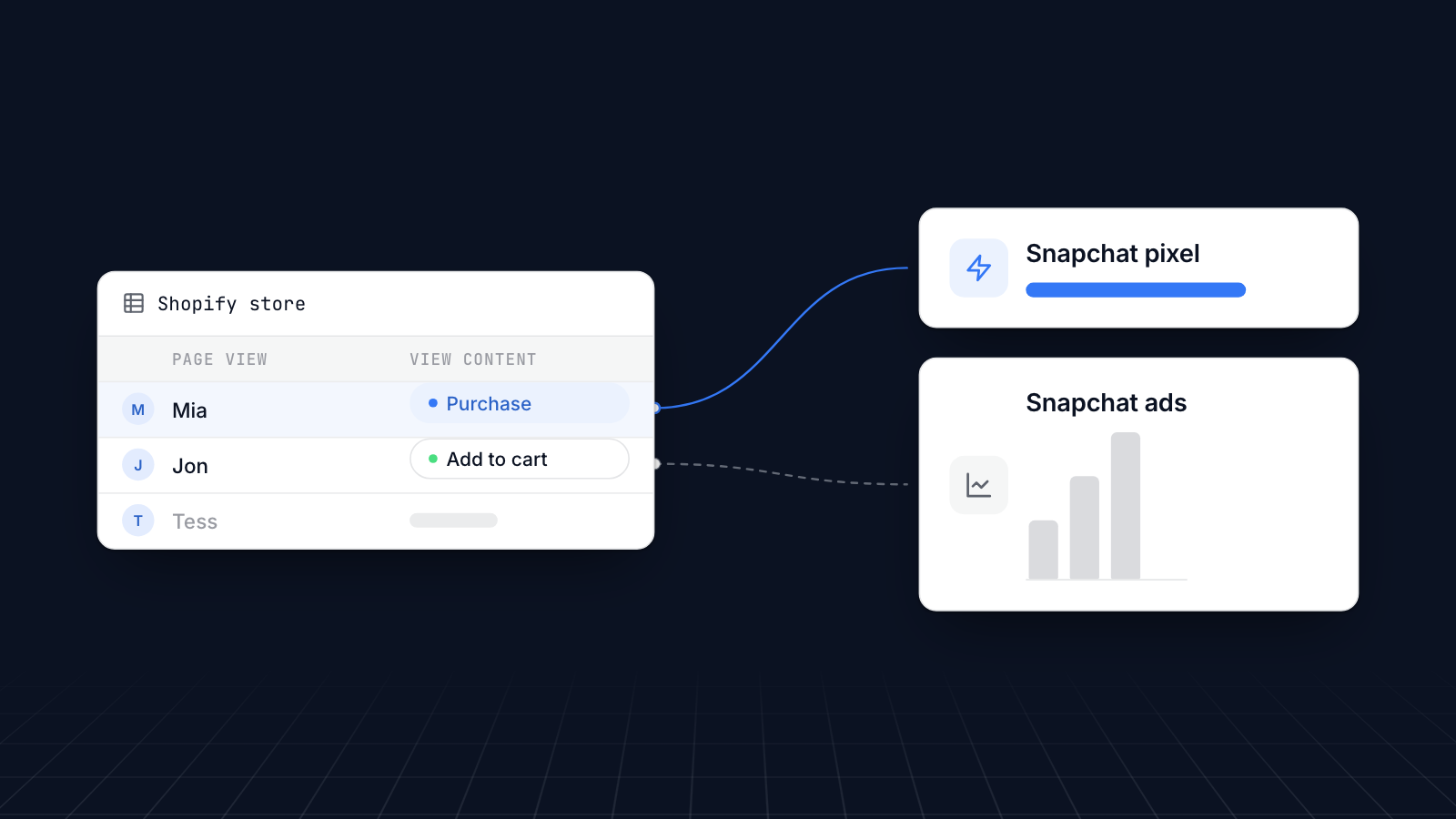
That data shows which ads work, where you lose people, and who to show ads to again. You do not need to code to set it up. This guide covers how to use the Snapchat pixel on Shopify: installing it, choosing events, using the data, and fixing problems.
Key takeaways
The Snapchat pixel (Snap pixel) records what visitors do on your store after seeing your Snapchat ads.
Install it with Snap's Snapchat Ads app for Shopify. No code is needed.
Track page views, product views, add to cart and purchases at minimum.
Use the data for conversion tracking, retargeting, lookalike audiences and budget decisions.
Check it with Snap Pixel Helper and Snapchat's Events Manager.
What Snapchat Pixel Is
The Snapchat pixel is code on your Shopify store that records what visitors do after seeing or tapping your Snapchat ads, and sends those events to Snapchat.
Definition and Purpose
The Snap pixel records actions like viewing a product, adding it to the cart and buying. Snapchat uses those events to measure your ads, build audiences and optimize delivery. You use them to see which products and ads get results.
Snapchat Pixel vs. Other Ad Pixels (Meta, TikTok, etc.)
It works like the Meta and TikTok pixels, but for Snapchat's audience, which is mobile and skews young. If your customers are Gen Z or younger millennials, Snapchat is worth testing, and the pixel is what makes those tests measurable.
You can run the Snapchat pixel alongside the other social pixels, such as Meta and TikTok, on the same store. Install each one once.
Reasons to Use Snapchat Pixel on Your Shopify Store
The pixel turns Snapchat ads from guesswork into something you can measure.
Accurate Conversion Tracking
The pixel shows what people do after tapping your ad: browse, add to cart or buy. You can see which ads lead to purchases, not just taps.
Audience Retargeting on Snapchat
Most shoppers do not buy on their first visit. The pixel lets you retarget people who viewed a product or left at checkout, with ads for the products they looked at.
Optimizing Ad Spend and ROI
With purchases tracked, you can see which campaigns make money. Move budget to those and cut the rest. When you optimize campaigns for purchases, Snapchat also uses pixel data to show your ads to people more likely to buy.
Building Custom and Lookalike Audiences
Once the pixel has data, you can build custom audiences from real actions, such as everyone who added to cart in the last 30 days. You can also build lookalike audiences: Snapchat finds new people who behave like your buyers, so each campaign starts from better targeting.
Step-by-Step Guide: Installing Snapchat Pixel on Shopify
Setup takes three steps: create the pixel, connect it to Shopify, and check it works. Our full guide to installing the Snapchat pixel on Shopify covers each in more detail.
Create Your Snapchat Pixel
- Open Snapchat Ads Manager.
- Open the menu and go to Events Manager.
- Choose to set up web events, and create a pixel.
- Name it, for example after your store.
- Confirm.
Add Snapchat Pixel to Shopify
The simplest way is Snap's own app:
- In your Shopify admin, install the Snapchat Ads app from the Shopify App Store.
- Open it and log in with your Snapchat Business account.
- Choose your ad account and the pixel you created.
- Confirm and save.
The app installs the pixel and sends the standard shopping events, including on checkout. Snapchat also has a Conversions API for server-side events, which still arrive when a browser blocks the pixel. Avoid pasting the pixel code into your theme instead: theme code does not run on Shopify's checkout, so it misses purchases, and using both counts events twice.
Set Up Event Tracking
Make sure the events you need are being sent. The Snapchat Ads app handles the standard ones. At minimum, track:
PAGE_VIEW: a visitor views a pageVIEW_CONTENT: a visitor views a productADD_CART: a visitor adds an item to the cartPURCHASE: a visitor completes an order
Send the order value and currency with purchases, so Snapchat can report return on ad spend.
Verify Pixel Installation
Check that it works before you rely on it.
- Open your store in a private browser window.
- Turn on the Snap Pixel Helper Chrome extension.
- Browse your store: view a product, add it to the cart and start checkout.
- Check that Pixel Helper shows each event, and that the events appear in Snapchat's Events Manager.
- Place a test order and check the purchase event arrives.
Common Snapchat Pixel Events to Track
These events show who is browsing and who is ready to buy.
PAGE_VIEW: someone landed on your store. Confirms your ads bring visitors.VIEW_CONTENT: they looked at a product. Use it to build audiences of interested people.ADD_CART: they added something to the cart. The audience to retarget if they leave.START_CHECKOUT: they started checkout. Shows where people drop out.PURCHASE: they bought. The event that shows which ads make money.SIGN_UP: optional, for people who join your list but are not ready to buy.
Snapchat Pixel Troubleshooting Tips
Most problems are small: the wrong pixel, a duplicate install or a delay.
Start with Snap Pixel Helper. It shows whether the pixel loads on each page and which events fire, so you can see where things go wrong.
Then check the basics in Snapchat Ads Manager: that the app uses the right pixel ID, and that events are arriving in Events Manager. If you use the Snapchat Ads app, disconnecting and reconnecting it often clears sync problems.
If you added the pixel by hand, your theme may be the cause. Preview a copy of a default Shopify theme with the pixel to see whether it works there. Remember that theme code never runs on checkout, so missing purchases are expected with that method.
New pixels can take a while to show data, sometimes up to 24 hours. If there is still nothing after that, go back through the setup.
Common Mistakes to Avoid
These mistakes are the usual reasons Snapchat tracking fails:
- No purchase event. Without
PURCHASE, Snapchat cannot tell which ads sell. - The wrong pixel ID. Easy to do if you have several ad accounts.
- Two installs. The app plus theme code, or two apps, counts every event twice.
- Not testing. A quick check with Pixel Helper and a test order saves a week of missing data.
- Ignoring mobile. Snapchat users are on phones, so test your store on mobile, not just desktop.
You can also add UTM parameters to your Snapchat ad links, so the traffic shows up by campaign in GA4 and Shopify alongside Snapchat's own numbers.
Don’t Just Run Ads, You Run Them Smarter
The Snapchat pixel takes a few minutes to set up and shows which Snapchat ads bring sales. Install it with the Snapchat Ads app, track the core shopping events, test it, then use the data to retarget visitors, build lookalikes and move budget to what works.
MultiPixels installs Snapchat, Meta, TikTok, Pinterest and GA4 pixels on a Shopify store without editing theme code. Install MultiPixels on your Shopify store to run several tracking pixels at once.